
List Manager Tutorial
List Manager 6: Fields / Columns configuration
The Fields/Columns screen controls every column of your list: its label, data type, whether it shows in the table, how it is formatted, its input widget in the add/edit form, and its behaviour in search and export. Open a list and click Fields/Columns in the toolbar.
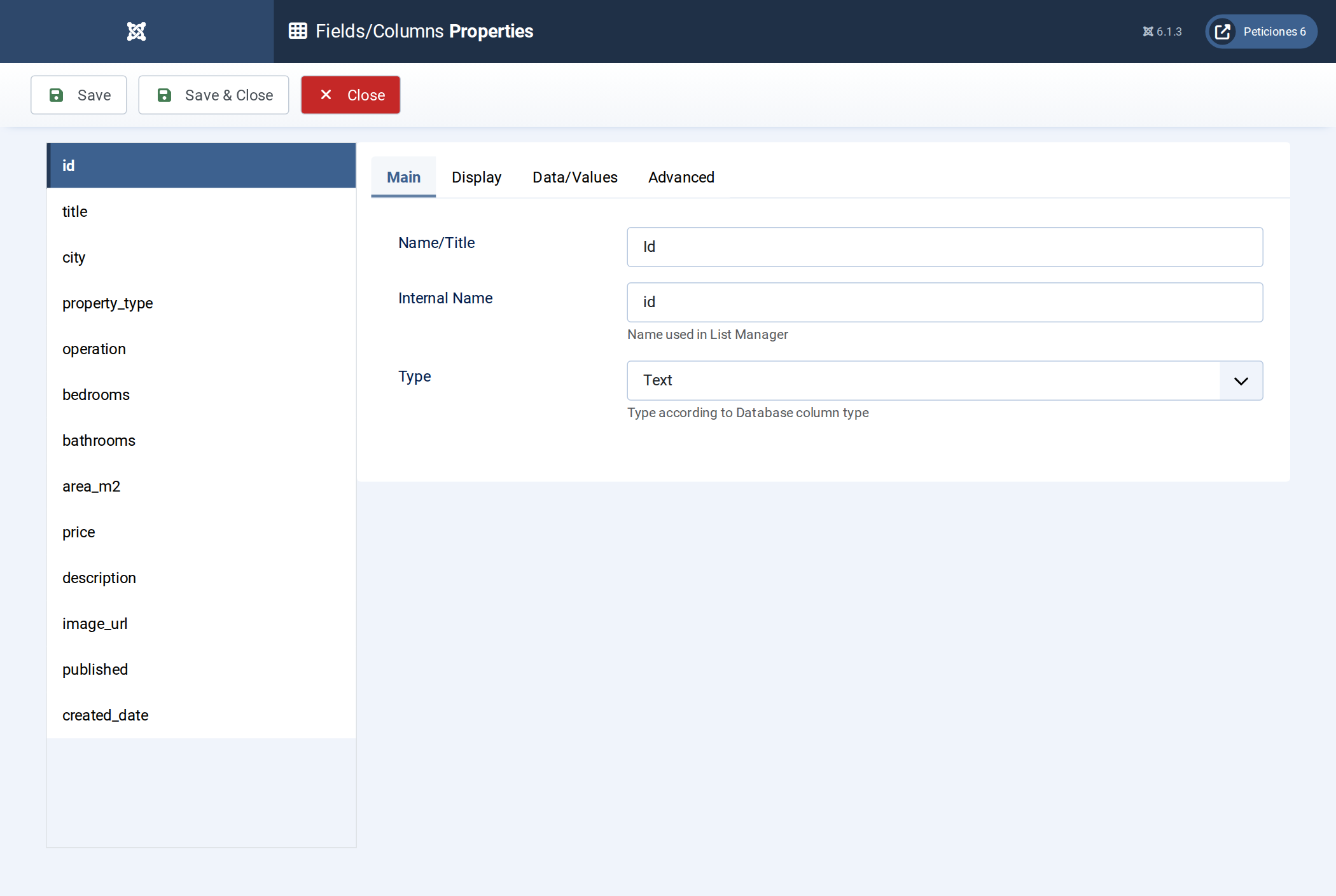
The left panel lists the columns detected in the table. Click one to edit it; the four tabs on the right hold its settings.
Main tab
- Name/Title — the heading shown on the front end (e.g. Price
for the column
price). - Internal Name — the token List Manager uses everywhere for
this column: as
##internalname##in the Data / Detail / Card / Form layouts, and as the field key in search, filters, ordering and export. It normally matches the database column name.Allowed characters — strict. It must start with a letter (a–z / A–Z) and then contain only letters, digits and the underscore
_. No spaces, dashes, dots, accents or other punctuation, and it cannot begin with a digit (pattern^[A-Za-z][A-Za-z0-9_]*$). It is case-sensitive and must be unique within the list. If you leave it blank, List Manager fills it from the column name after removing every character that is not a letter, digit or underscore. Changing it later breaks any layout, filter or export rule that still references the old token. - Type — how the column is shown in the list and edited in the add/edit form. Every type is covered, with a front-end screenshot, in its own tutorial: Text, Textarea, HTML Editor, Number, Number Slider, Progress, Date, Datetime, Today, Option List, Multiple Option (Check / List), Radiobutton, Yes/No, User, Rating / Vote, Upload File, Link to other list, Autoincrement, Calculated Query / Calculated PHP and Buy Now (PayPal).
Display tab
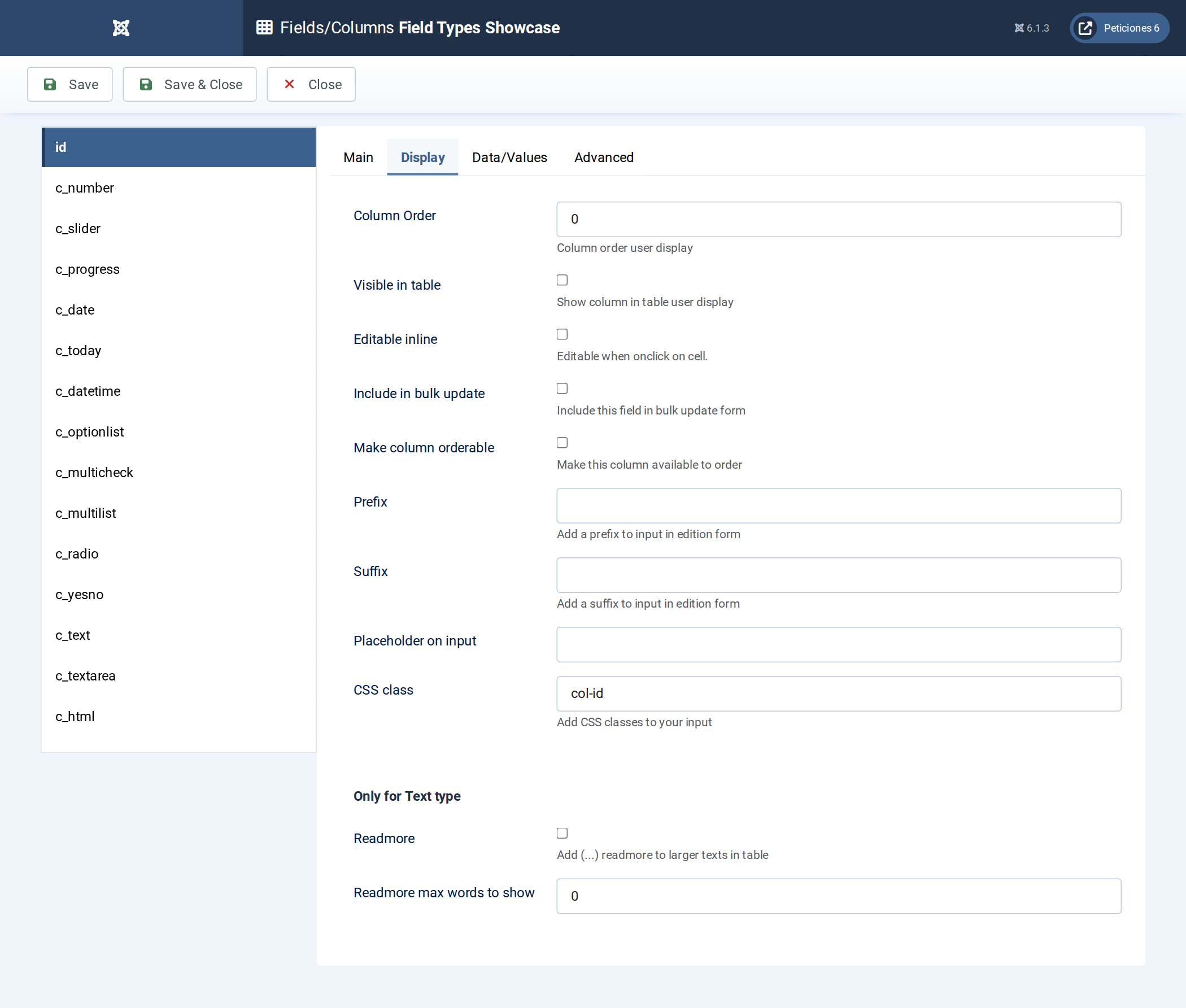
- Visible — show this column in the front-end table.
- Editable / Bulk — allow inline editing / bulk editing on the front end.
- Column order and default sort order.
- Prefix / Suffix — text wrapped around the value, e.g. suffix
€for a price orm2for an area. - Read more — truncate long text with a “read more” link.
- CSS class — your own class on the cell.
Data/Values tab
- Default value, placeholder, required.
- Validations and, for numbers, decimals and min/max.
- Options for Option List / Radiobutton / Multiple Option — typed in, pasted as CSV, or pulled from a SQL query.
- Calculated Query / Calculated PHP — a value computed from other columns.
Advanced tab
- Exportable — include the column in CSV/Excel/PDF exports.
- Include in search and search type (text match, number, range…) — this powers the global search box.
- Totals — show a SUM/AVG row for numeric columns.
- Link to another list — turn the cell into a link to a filtered view of a second list.
Click Save & Close when done. The configuration is stored as JSON on the list, so it travels with a Copy of the list.