
List Manager Tutorial
Example: a houseplant care guide with cards and filters
▶ A video walkthrough of this example (English audio & subtitles). The written steps below cover the same ground.
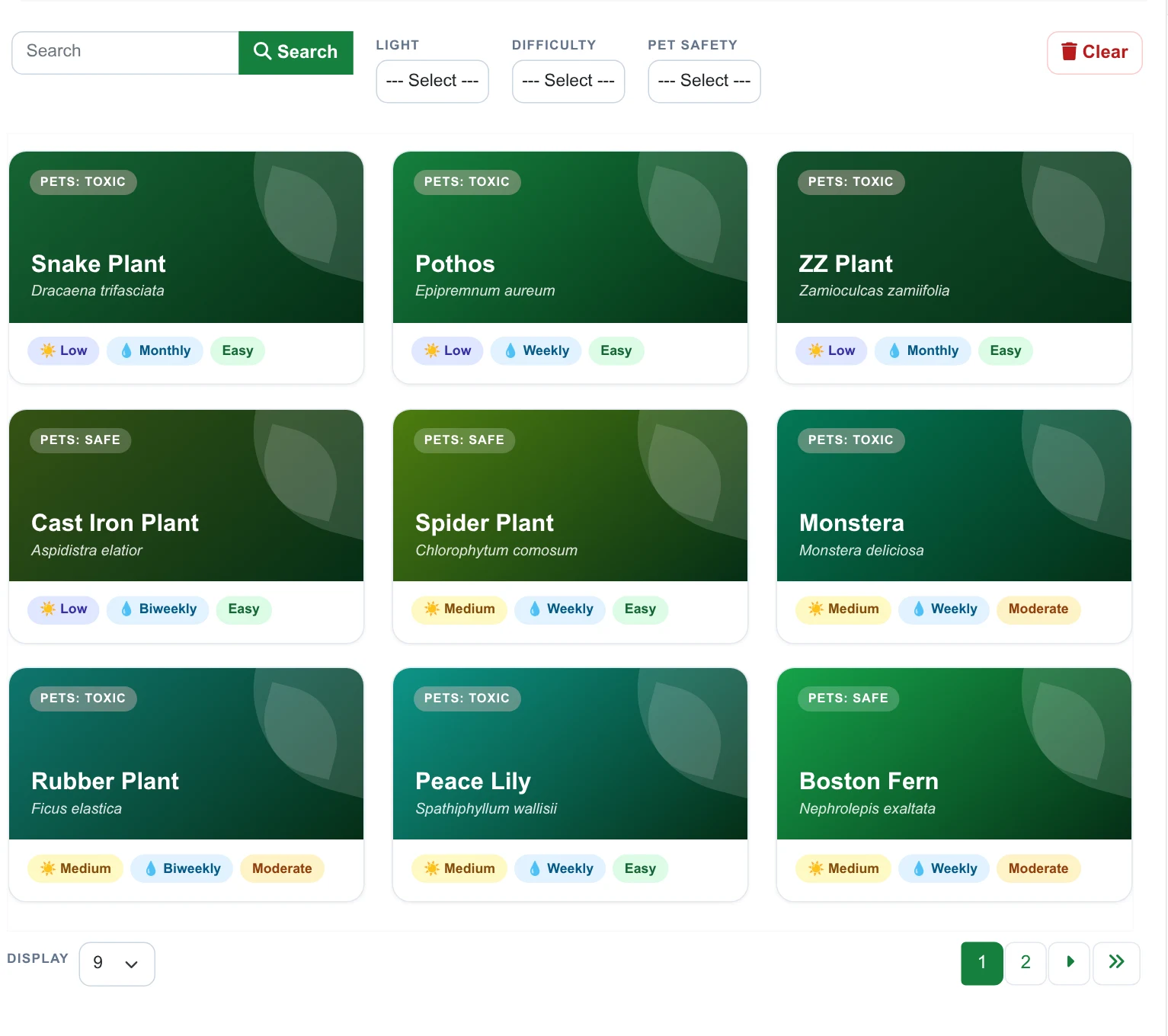
A houseplant care guide with a modern look: every plant is a colourful card showing its light, watering and difficulty, with a search box, three filters and a detail pop-up. It starts from one plain database table and needs only a little HTML and CSS.
⇩ Table — houseplant_care_guide.sql ⇩ List configuration — houseplant_care_guide_config.xml
The fastest way to follow along: run the .sql file (phpMyAdmin) to create the lm_plants
table with 18 plants, then Import the configuration file on the List Manager main screen
(see exporting and importing lists). To learn how it is built, follow the steps below instead.
1. The table
The data is one MySQL table, lm_plants: id, name, latin,
light (low / medium / bright), water, level (easy / moderate / expert), pets
(safe / toxic), color (a hex colour for the card) and tip. Create it with the SQL file, or build your own with
Database Options → Add DB Table.
2. Register the list
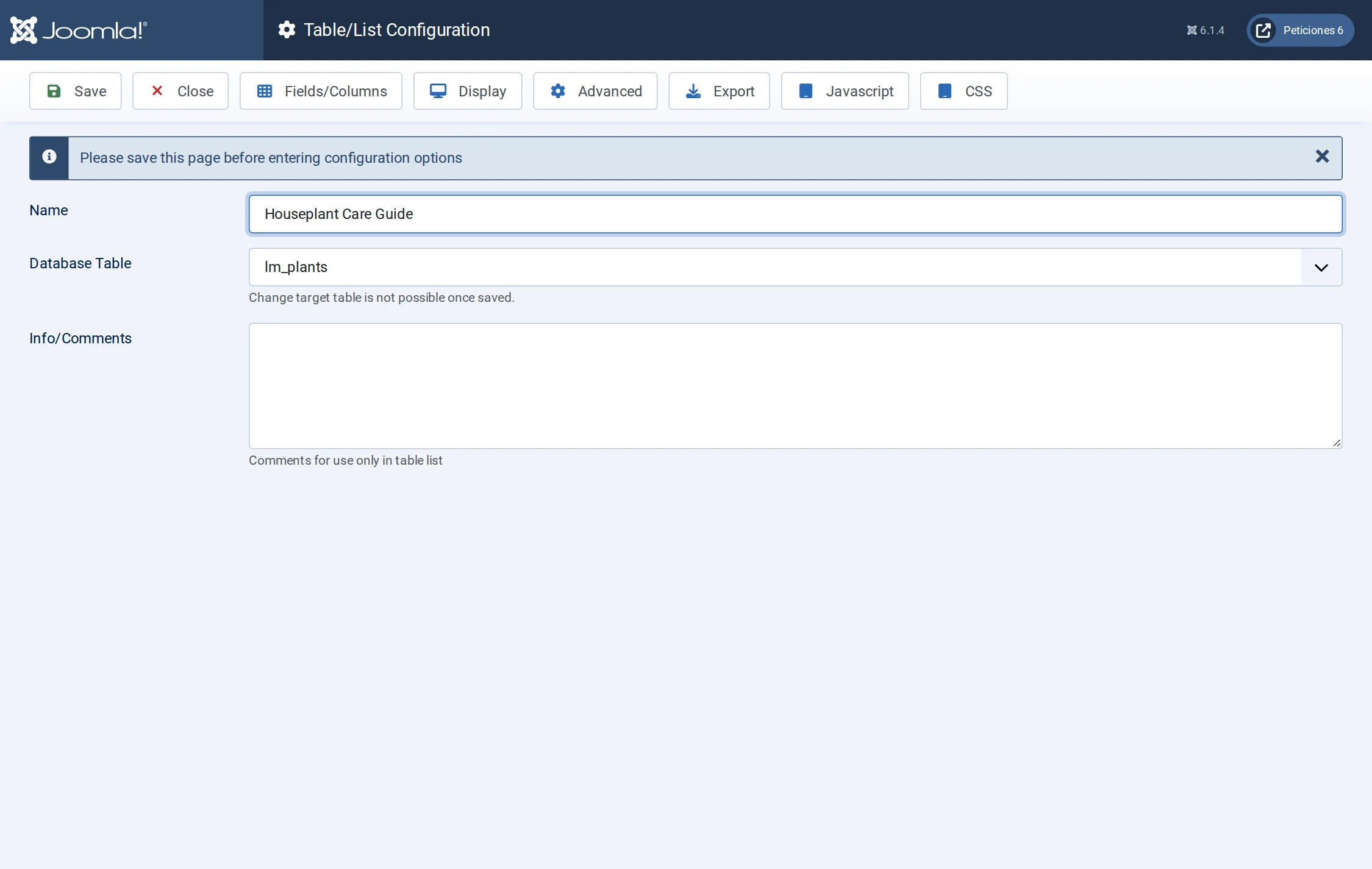
Add → Name Houseplant Care Guide → Database Table lm_plants →
Save.
3. Fields/Columns
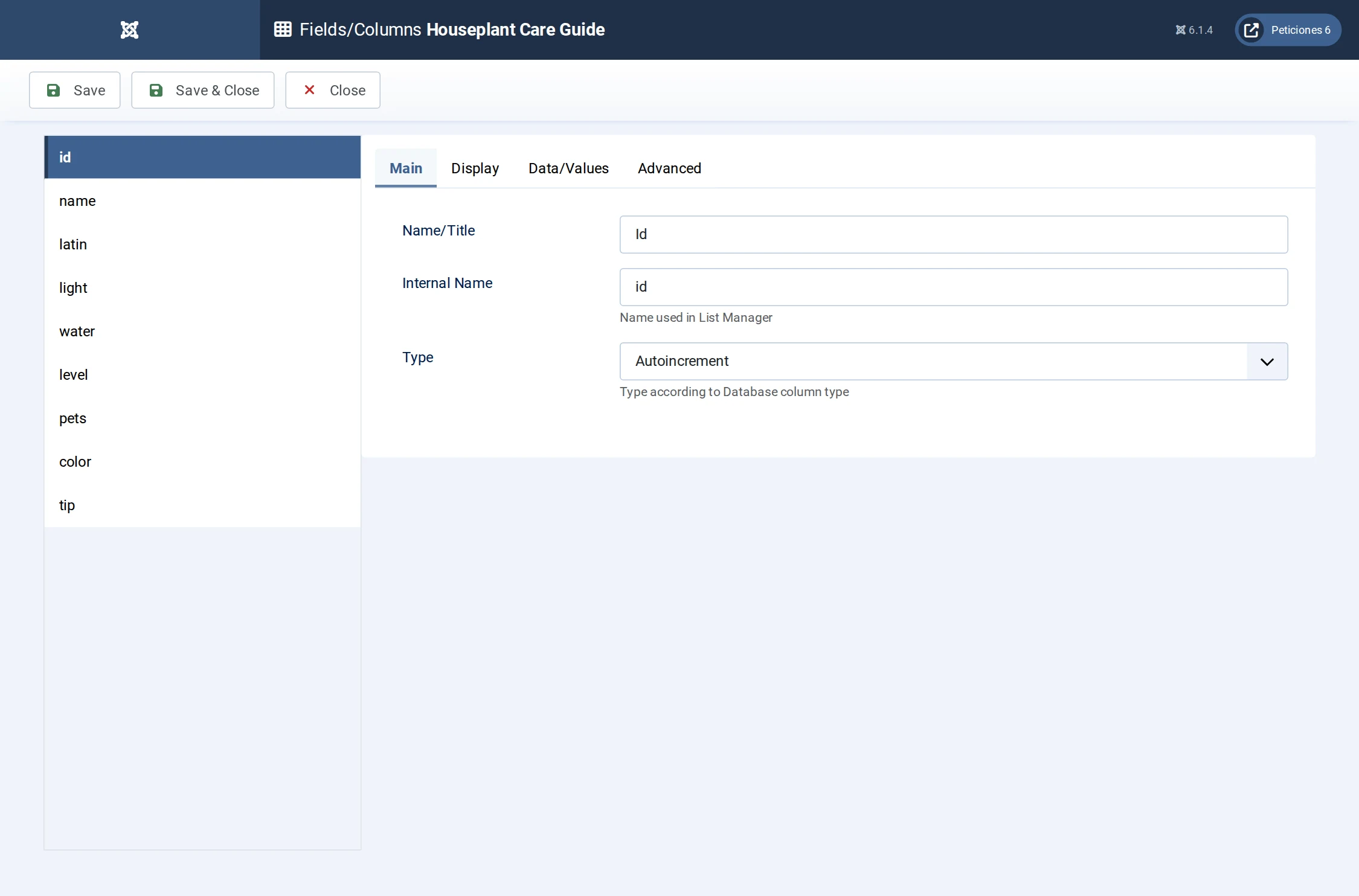
Open Fields/Columns. Give each column a friendly Name/Title
and the right Type: Option list for light, water, level
and pets (stored value → label, e.g. low → Low); Text for names;
Textarea for the tip. Turn on Include in search for the plant and botanical names and hide id.
4. Display → Card layout
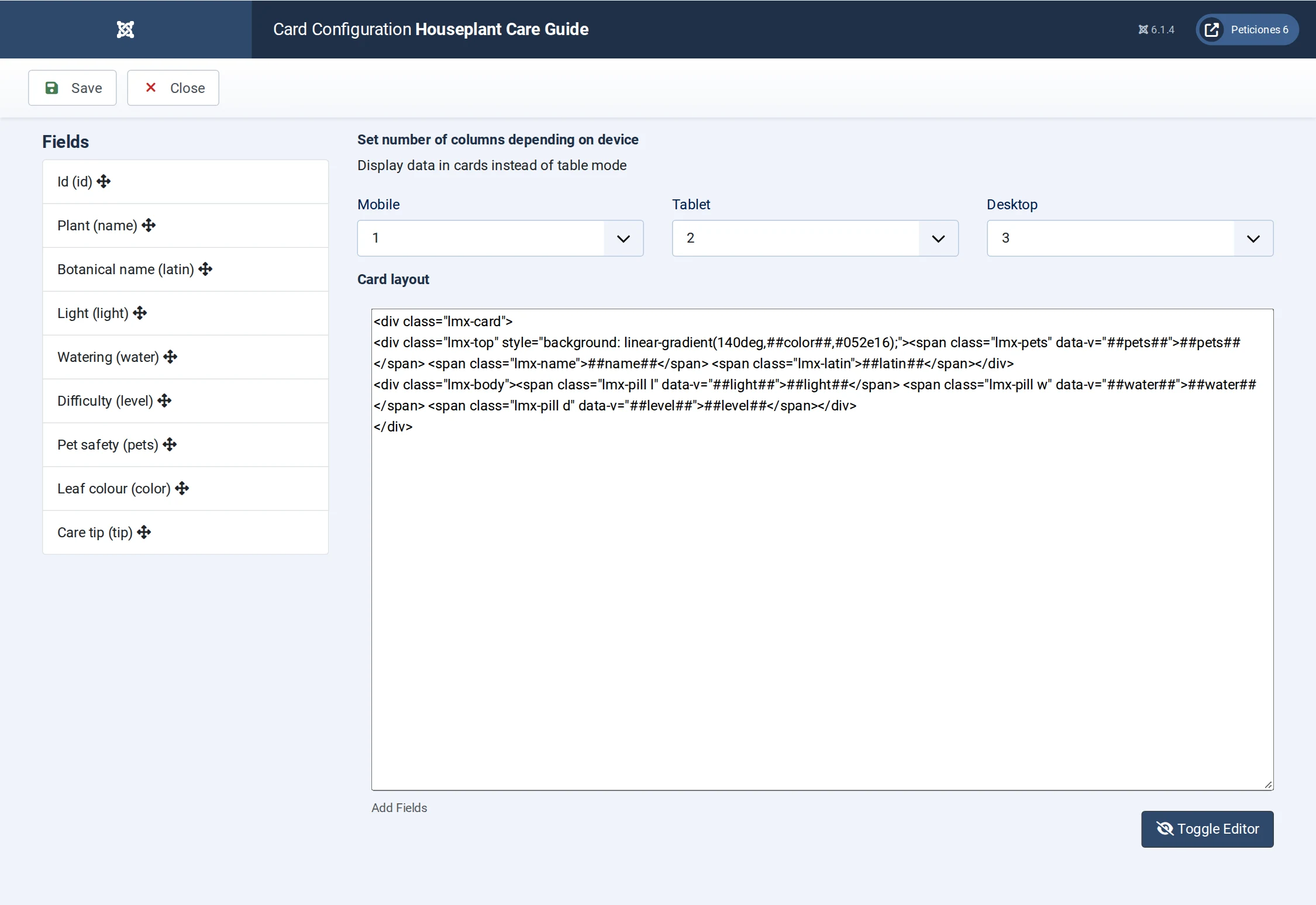
In Display choose the Card layout: 1 column on mobile, 2 on
tablet, 3 on desktop. The card HTML is written once; ##field## placeholders are replaced with each row’s
display value (option lists give their label):
<div class="lmx-card">
  <div class="lmx-top" style="background:linear-gradient(140deg,##color##,#052e16)">
    <span class="lmx-pets" data-v="##pets##">##pets##</span>
    <span class="lmx-name">##name##</span> <span class="lmx-latin">##latin##</span>
  </div>
  <div class="lmx-body">
    <span class="lmx-pill l" data-v="##light##">##light##</span>
    <span class="lmx-pill w" data-v="##water##">##water##</span>
    <span class="lmx-pill d" data-v="##level##">##level##</span>
  </div>
</div>
Tip: put the value in a data-v attribute and colour the pills with CSS attribute selectors. Keep real
text inside every element — the visual editor removes empty tags.
5. CSS — the design
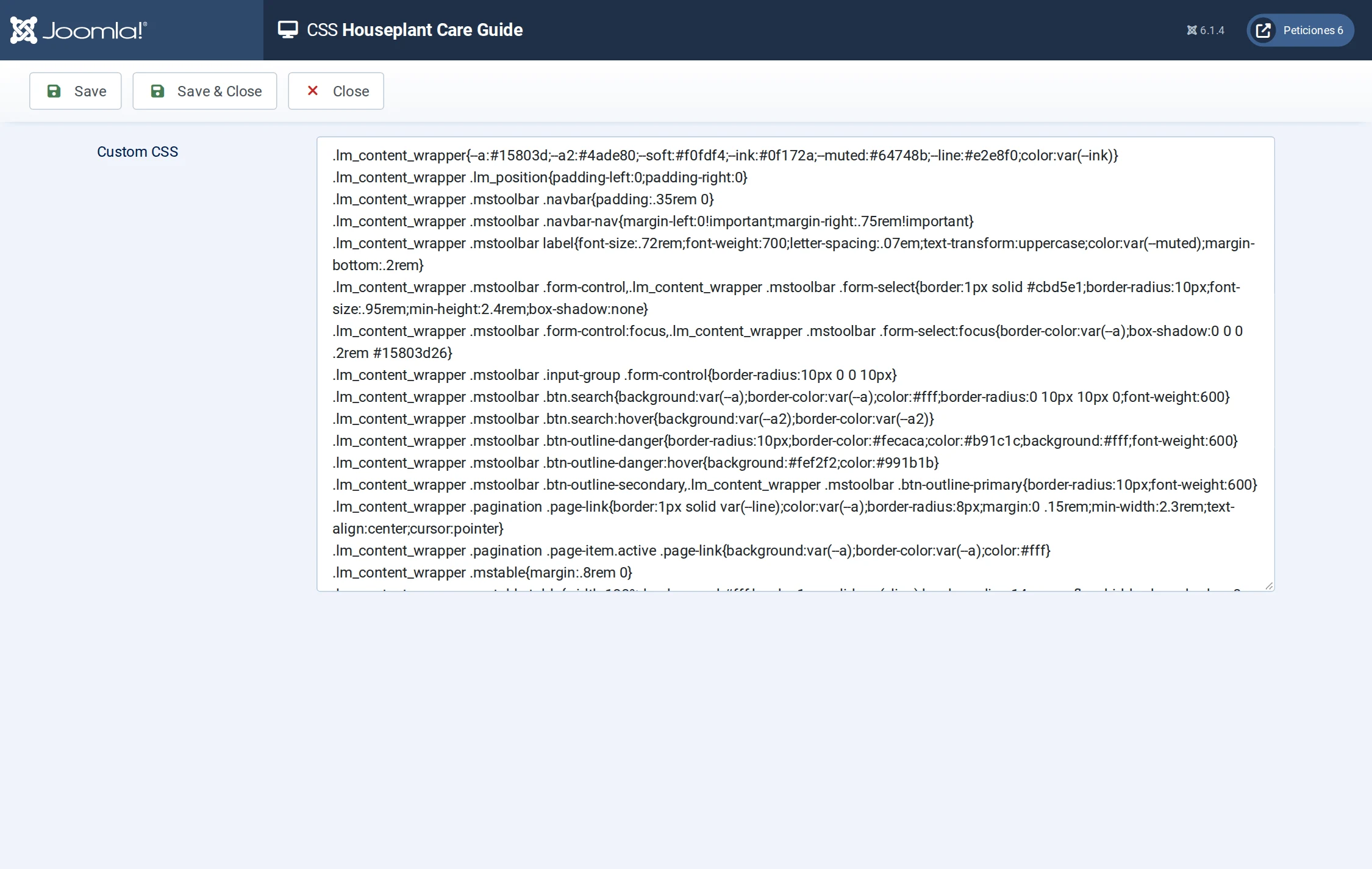
On CSS style the card (rounded corners, shadow, hover lift, gradient header) and
the pills, for instance .lmx-pill.d[data-v="Easy"]{background:#dcfce7;color:#166534}.
6. Search and filters — Data Layout
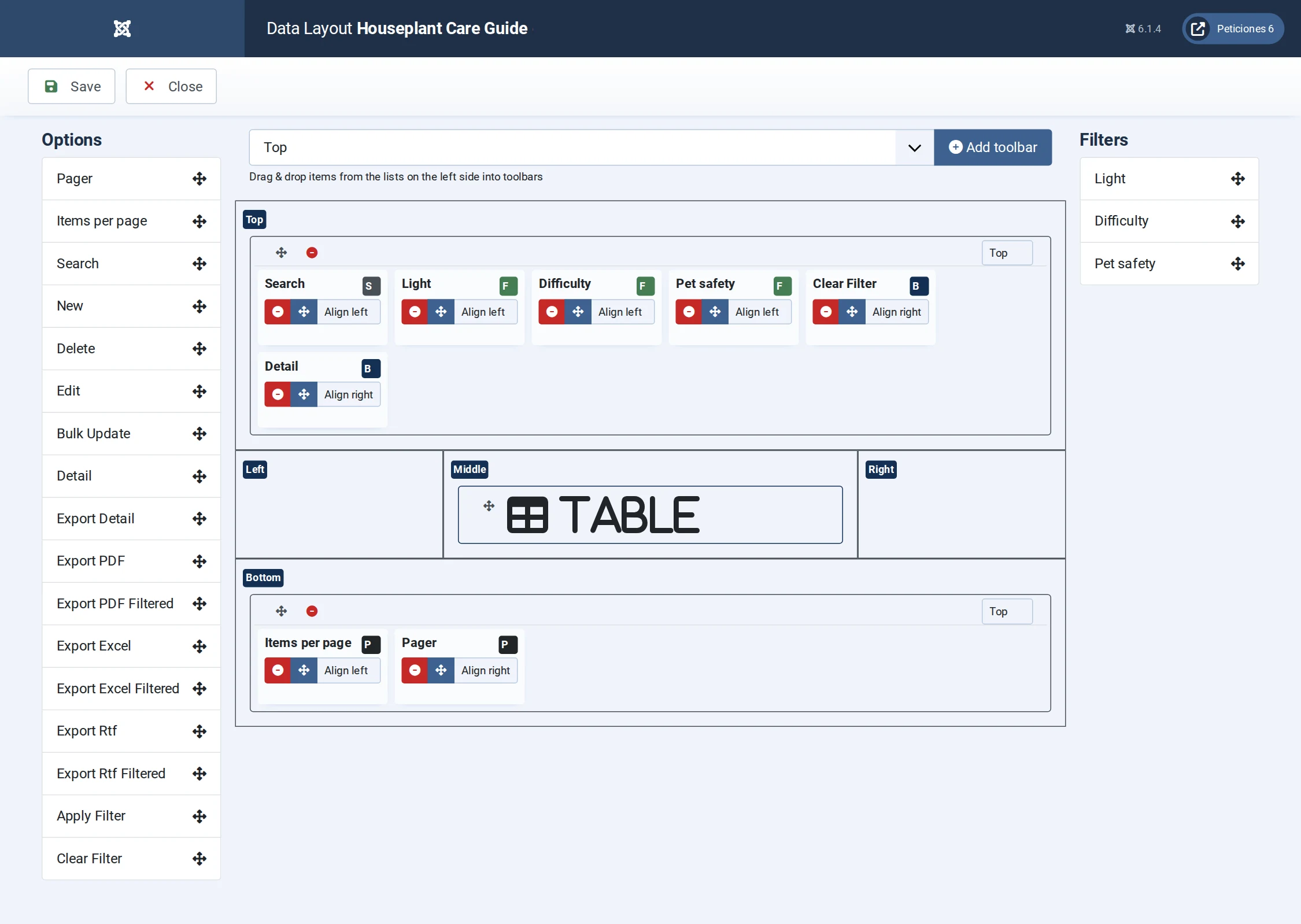
In Display → Data Layout drag Search, the three filters (Light, Difficulty, Pet safety) and Clear Filter into the top toolbar, Detail so a click opens the pop-up, and Items per page + Pager at the bottom. Add the filters first on Filters (type select). Save & Close.
7. Publish
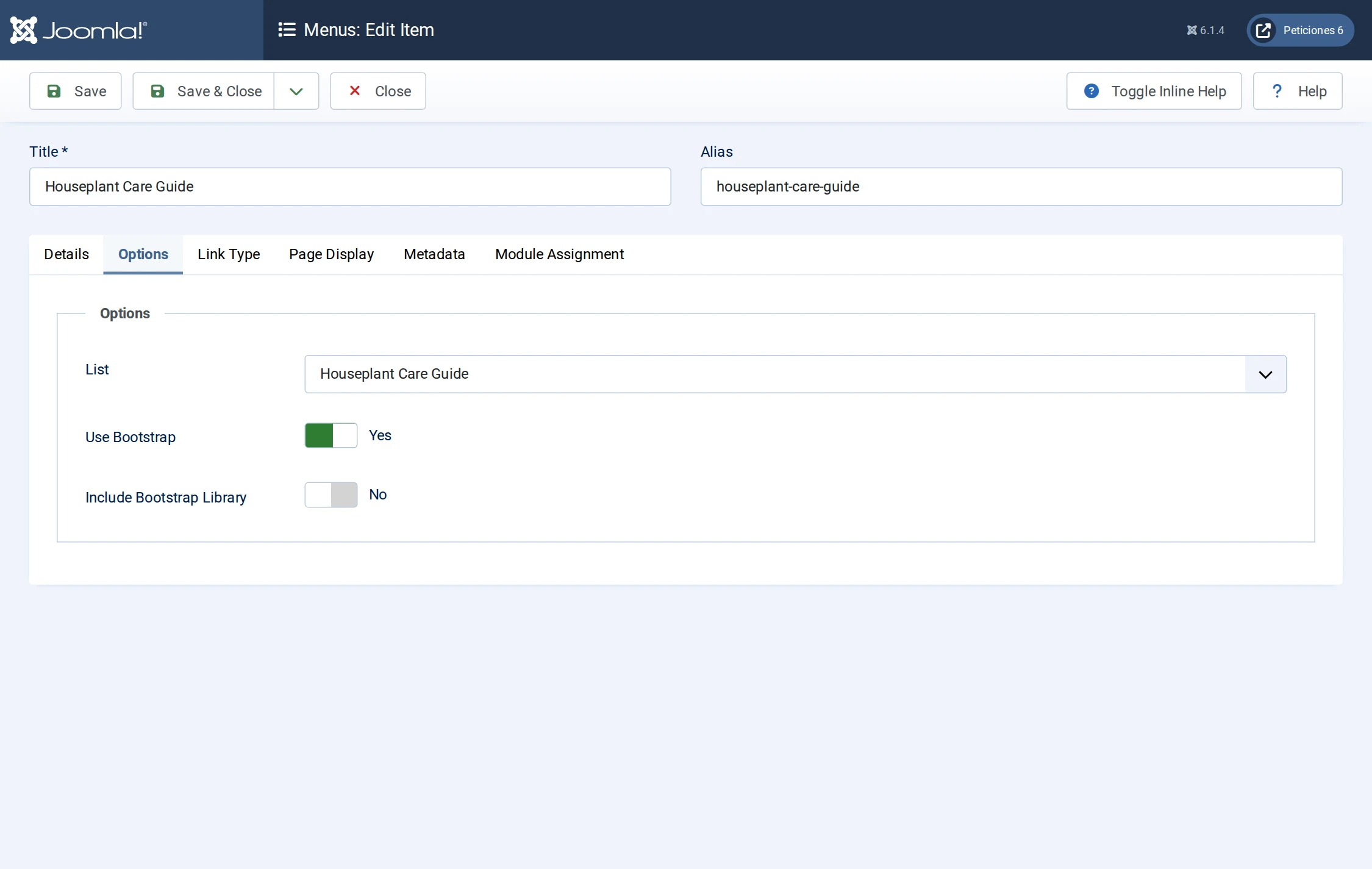
Create a menu item List Manager → List Manager and select Houseplant Care Guide on the Options tab.
Result
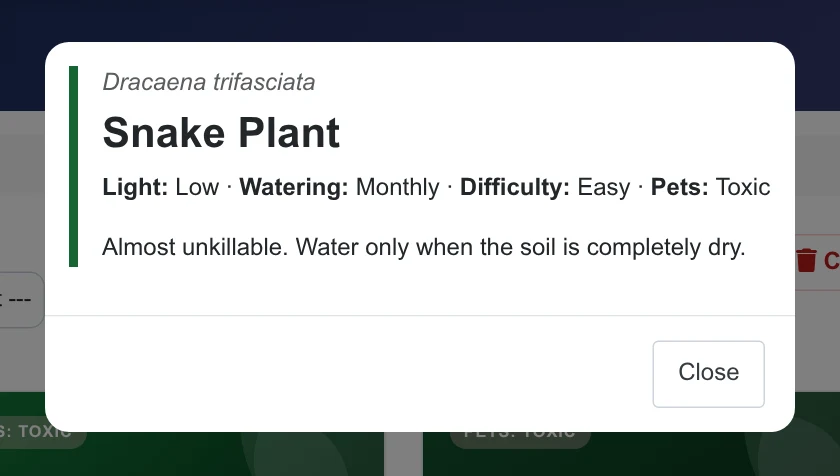
Visitors search, filter and page through the cards, and a click opens the plant’s detail pop-up (a second small HTML template, in Display → Detail). On a phone the cards stack in one column.
More about layouts: a simple contact directory, a property portal with filters and export.