
List Manager Tutorial
List Manager 6: exporting and importing lists (backup and move between sites)
A list is more than its rows: it is a table plus all the configuration you built on top of it — fields, layouts, filters, export options, custom CSS and JS. Export and Import package all of that into one XML file, so you can keep a backup, copy a list to another Joomla site, or hand a finished list to a client — with or without its data.
The three buttons
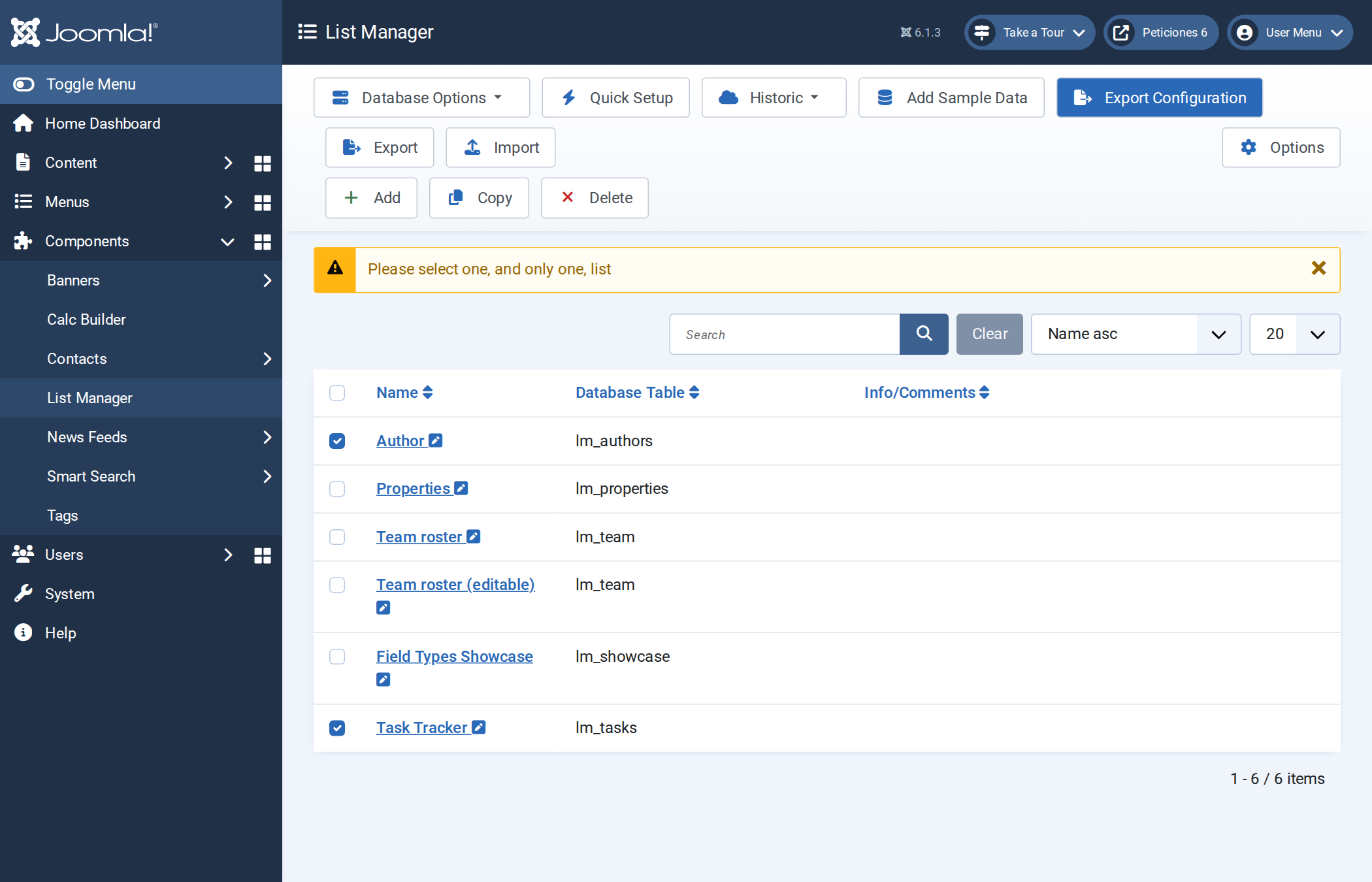
They live on the main Components → List Manager toolbar. Both export buttons work on exactly one list at a time, so tick one row first.
| Button | What it does |
|---|---|
| Export Configuration | Downloads an XML file with the list definition only: name, comments, every field setting, the Data/Form/Detail/Card layouts, filters, pagination, export and advanced options, custom CSS/JS, and the values of option lists. No table, no records. |
| Export | Downloads the same file plus the database table: its structure
(CREATE TABLE) and every row. Everything needed to rebuild the list on an
empty site. |
| Import | Uploads a file produced by either export button and creates a new list from it. |
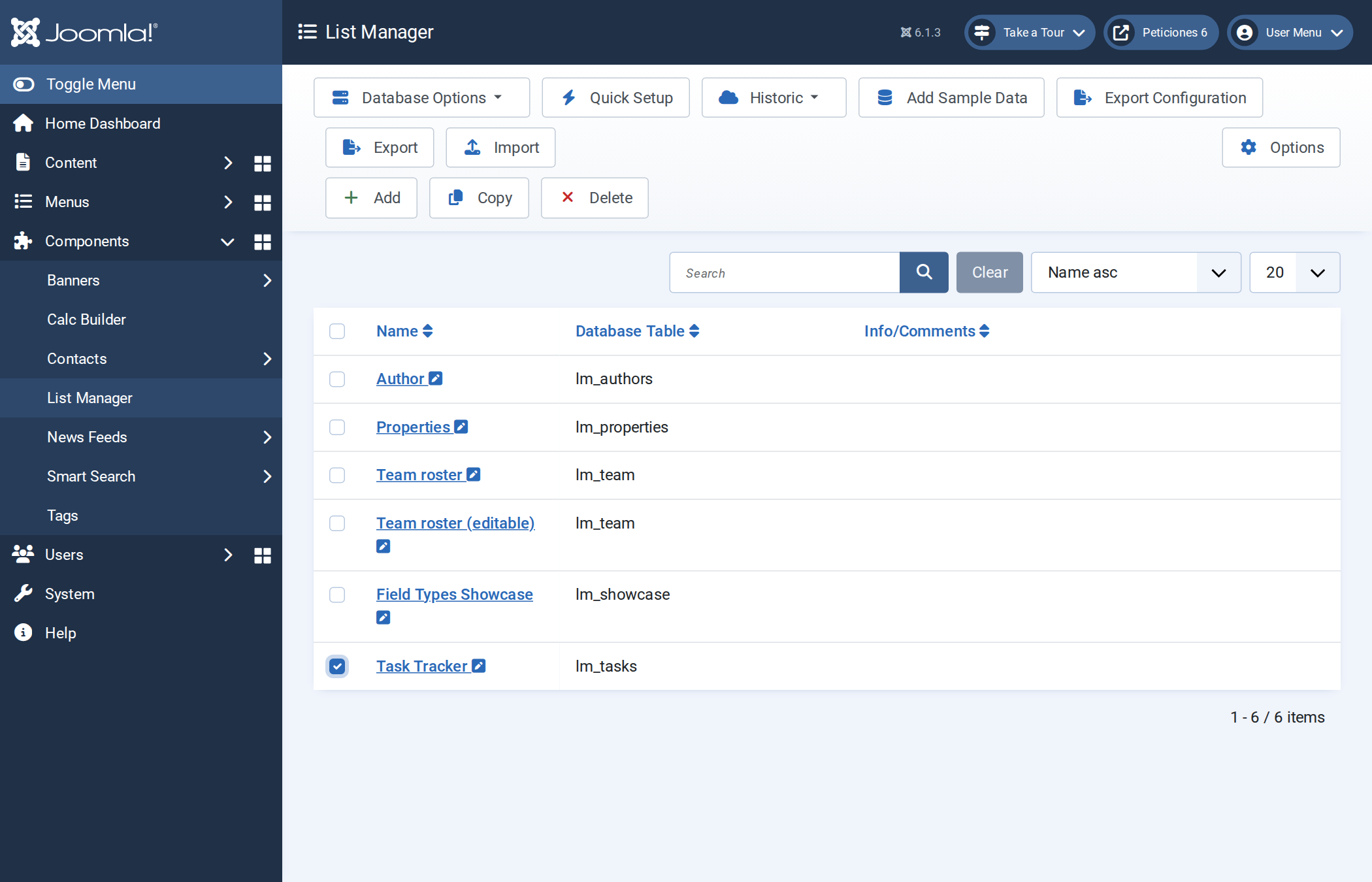
The two export buttons stay greyed out until a row is ticked. If you tick none, or more than one, List Manager stops you with a warning:
Exporting a list
- Open Components → List Manager.
- Tick the list you want (the demo uses Task Tracker, built in the Quick Setup tutorial).
- Click Export Configuration for the definition only, or Export to include the data.
- Your browser downloads the file straight away. The name says what it contains and when it was made:
listmanager_Task_Tracker_config_20260921_071615.xmlorlistmanager_Task_Tracker_export_20260921_071617.xml.
What is inside the file
It is a plain XML document. Every value is stored base64-encoded, which keeps HTML, quotes and accents intact, but also means the file is not meant to be read or edited by hand. In short:
<listmanagerExport generator="com_listmanager" type="config|full" version="1.0" date="...">
  <listheader>   name, table_name, config_fields, config_toolbar, config_formlayout,
                   config_visual, config_pagination, config_advanced, config_css, config_js ...
  <multivalues> the values of your option lists / radiobuttons
  <table>       (only in a full export) name, createSql, columns, rows
</listmanagerExport>
The type attribute (config or full) is how the importer knows what to expect.
Importing a list
- On the main page click Import (no row needs to be ticked).
- Choose the
.xmlfile in XML file. - Click Save & Close.
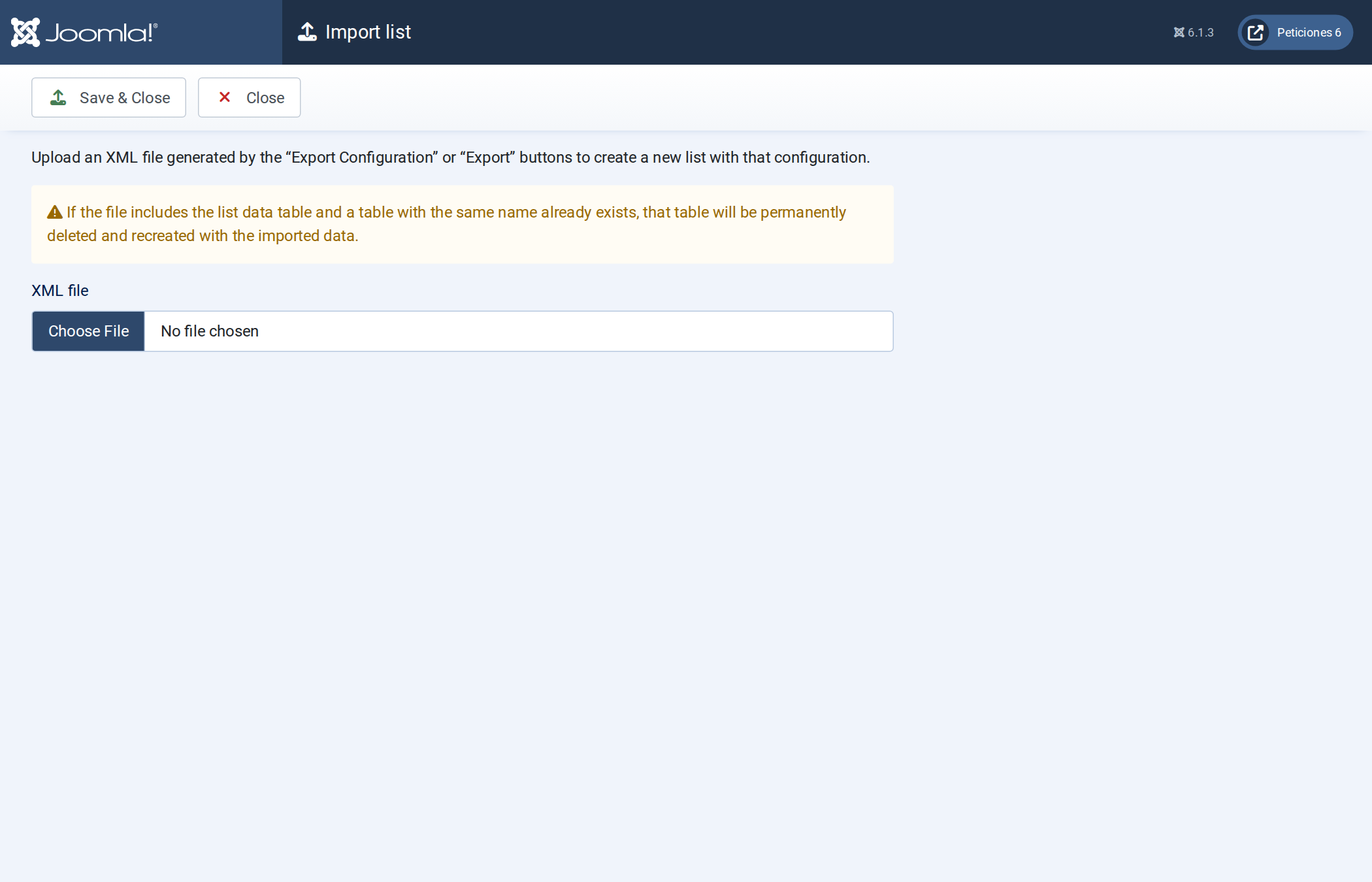
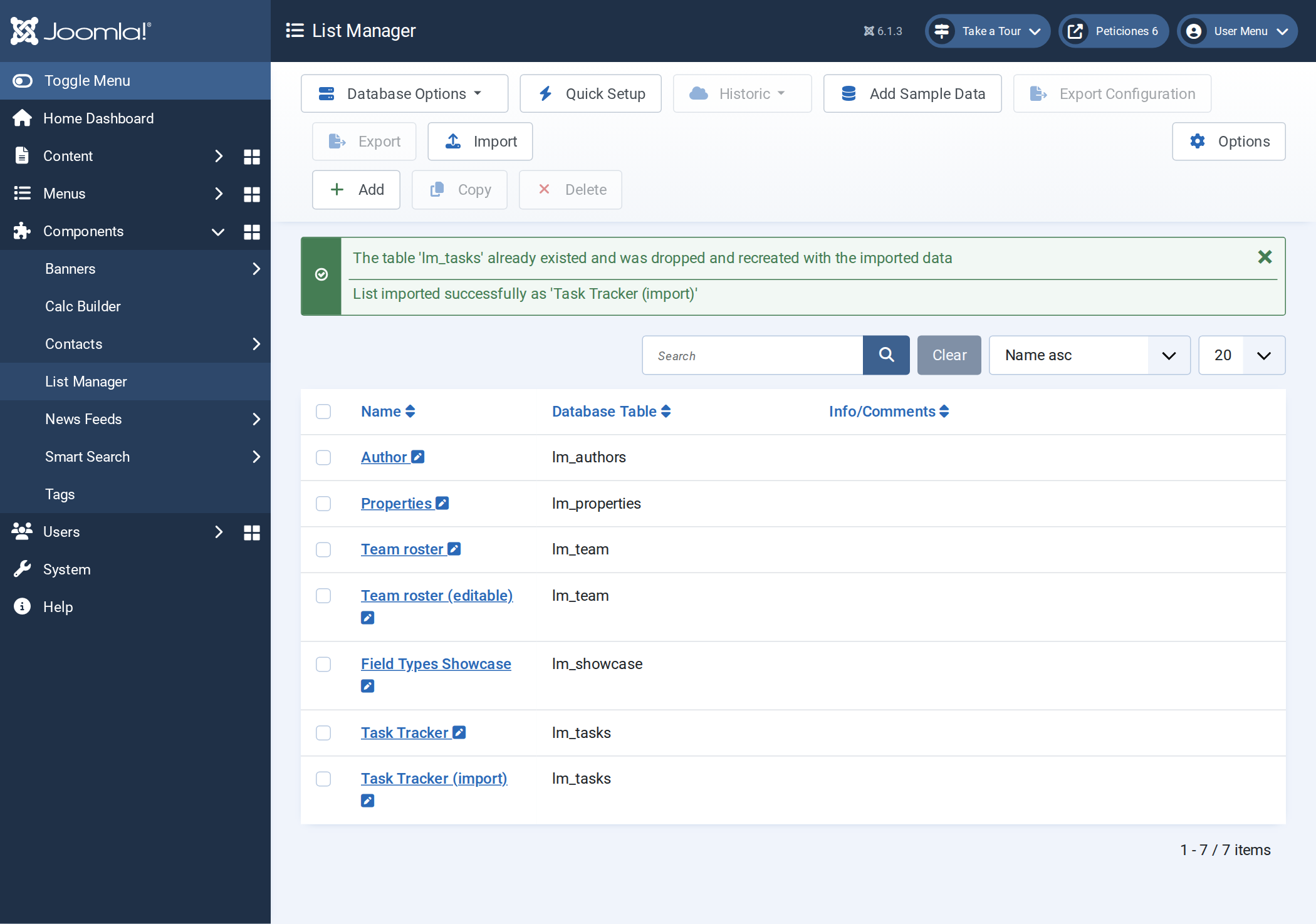
Read the yellow warning. If the file is a full export and your database already has a table with the same name, that table is permanently deleted and recreated from the file — any rows added since the export are lost. Back up first, and never import a full file over a table holding data you want to keep.
What the import does
- It always creates a new list, named after the original with (import) added. It never overwrites or merges into an existing list, so importing is safe for your other lists — rename the new list afterwards if you like.
- Configuration file: only the list is created. It points at the table named in the file, so that table must already exist in this database with the same columns. Ideal for a second list over the same table, or for a site where the table has already been created.
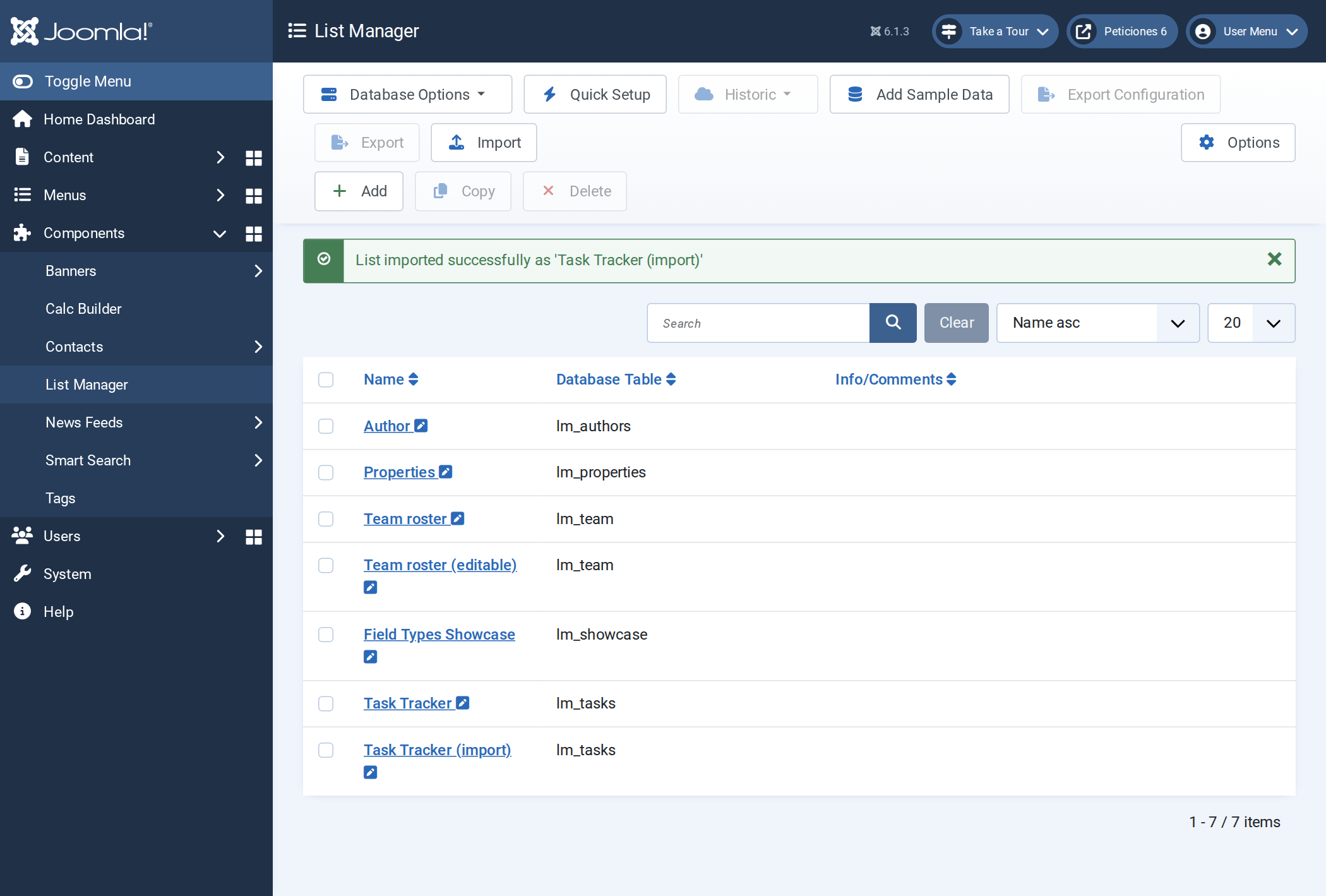
- Full file: the table is dropped (if present), recreated from the saved
CREATE TABLE, and filled with the saved rows, and then the list is created. You get two messages when a table was replaced.
If the import fails
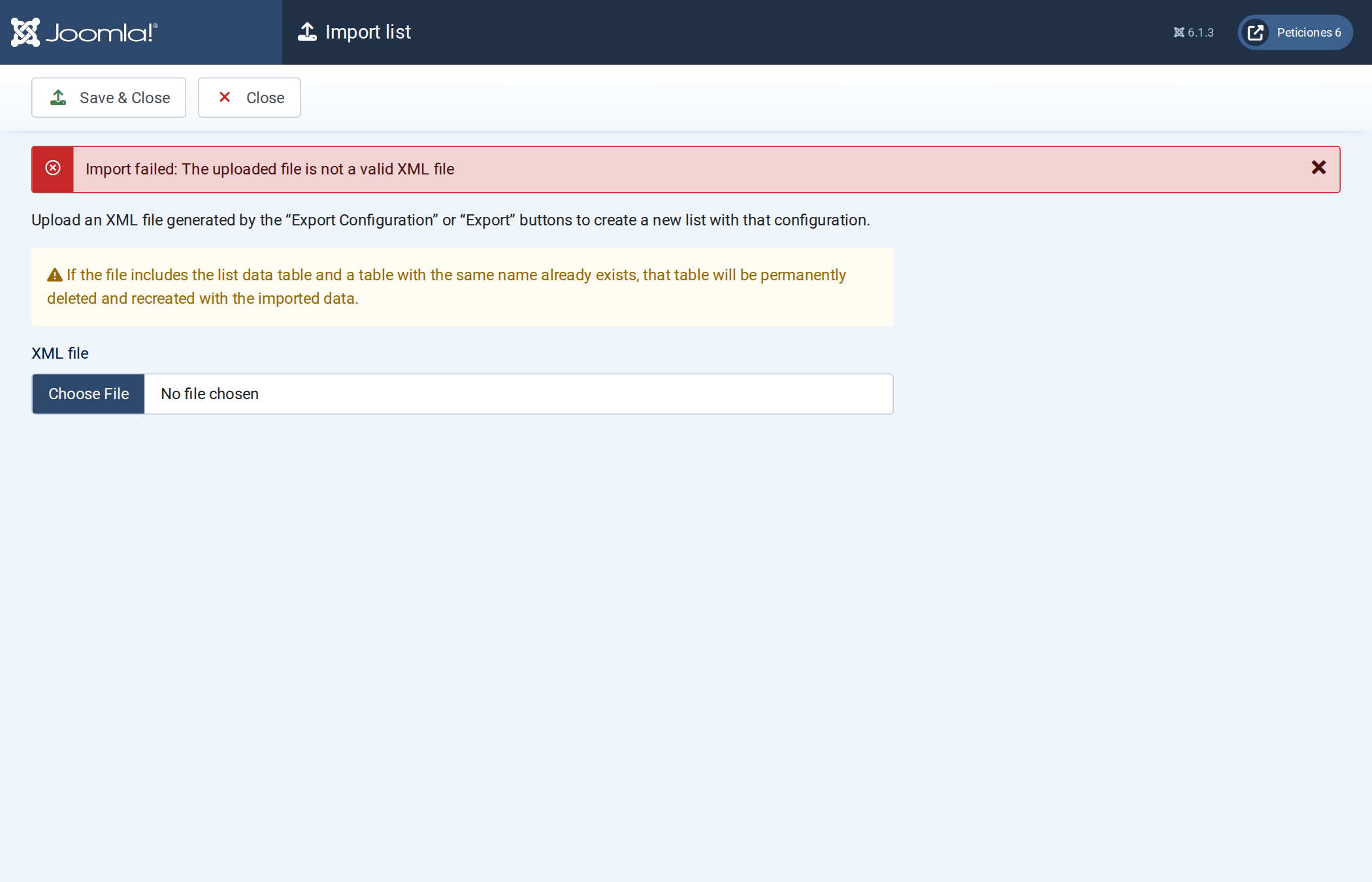
Nothing is created and you stay on the Import screen with a red message:
| Message | Cause |
|---|---|
| Please select a file to upload | You clicked Save & Close without choosing a file. |
| The uploaded file is not a valid XML file | The file does not have an .xml extension, is not well-formed XML, or is some other XML document. |
| The uploaded file was not generated by the List Manager Export / Export Configuration buttons | It is a List Manager XML document, but it was not produced by this component's export buttons (wrong generator or file type). |
What is not included
An export describes the list and its table, nothing around it. After importing on another site you still need to publish the list with a menu item or module. Menu items, modules, Joomla permissions, history and search logs, and files uploaded through Upload File columns are not part of the file. Importing also needs the Create permission on List Manager (see history logs, saved searches and permissions).
Typical uses
- Backup before a big change — export, experiment freely, and import the file if you need to go back (remember it creates a new list next to the changed one).
- Staging to production — export in full on the test site, import on the live one.
- Reusable templates — keep a configuration file of a list you build often and import it whenever a new project needs it.
- Same table, second list — import a configuration file on the same site to get an independent copy of the settings over the same table. To duplicate a list without a file, use Copy instead.
A full export loads every row into memory and the import inserts them one by one, so for tables with very large numbers of records use your database's own dump tools for the data and export only the configuration here.
Not to be confused with exporting data, which produces CSV, Excel, PDF or RTF files of the records for people to read, or with the CSV import/export of records in managing records in the back end. See the main page tour for the rest of the toolbar.