
CalcBuilder Tutorial
Example: a simple tip / bill-splitting calculator (Excel spreadsheet)
▶ A 90-second video walkthrough of this example (English audio & subtitles). The written steps below cover the same ground.
This is the spreadsheet version of the tip calculator. Same three inputs, same result — tip, total and amount per person — but there is no PHP code. A small Excel workbook holds the three formulas, and Calc Builder runs it.
⇩ Download the sample workbook — tip_model.xlsx (5 KB)
Download the file above, open it to see how it is built, then upload your own copy in step 3.
1. The workbook (3 formulas)
One sheet named Tip. Three input cells, three formula cells:
B1bill amount,B2tip %,B3number of people — the inputs.B5tip amount:=B1*B2/100B6total to pay:=B1+B5B7per person:=IF(B3>0, B6/B3, B6)
Give B5, B6 and B7 the number format
0.00 so they come back already rounded to two decimals.
2. Create the calculator and the form fields
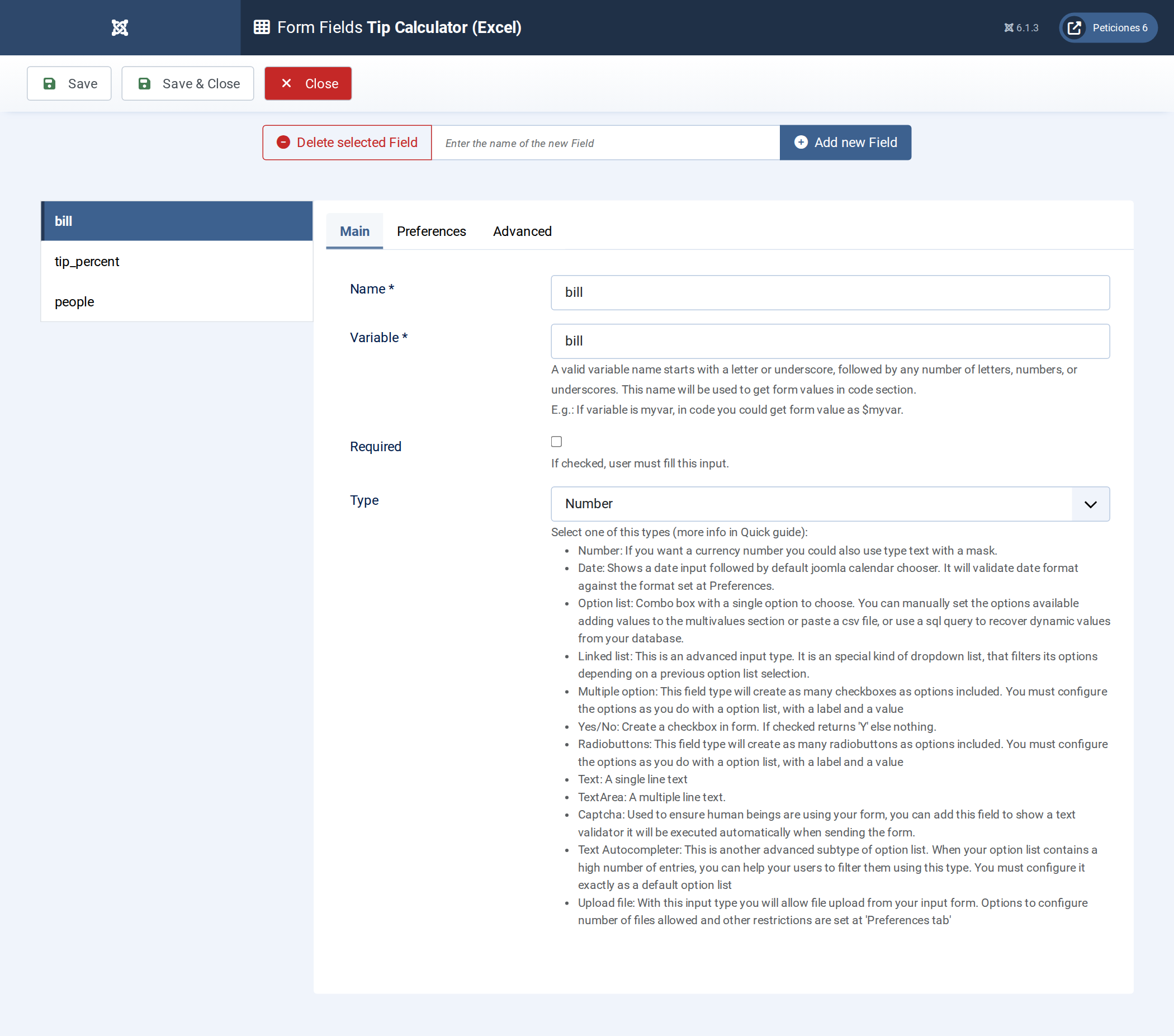
Components → Calc Builder → Add → name it Tip Calculator (Excel). On Form Fields add three Number fields, exactly like the PHP version:
bill— “Bill amount (€)”, 2 decimals, default 100tip_percent— “Tip %”, 2 decimals, default 15people— “Number of people”, 0 decimals, default 2
3. Upload the workbook — Spreadsheet screen
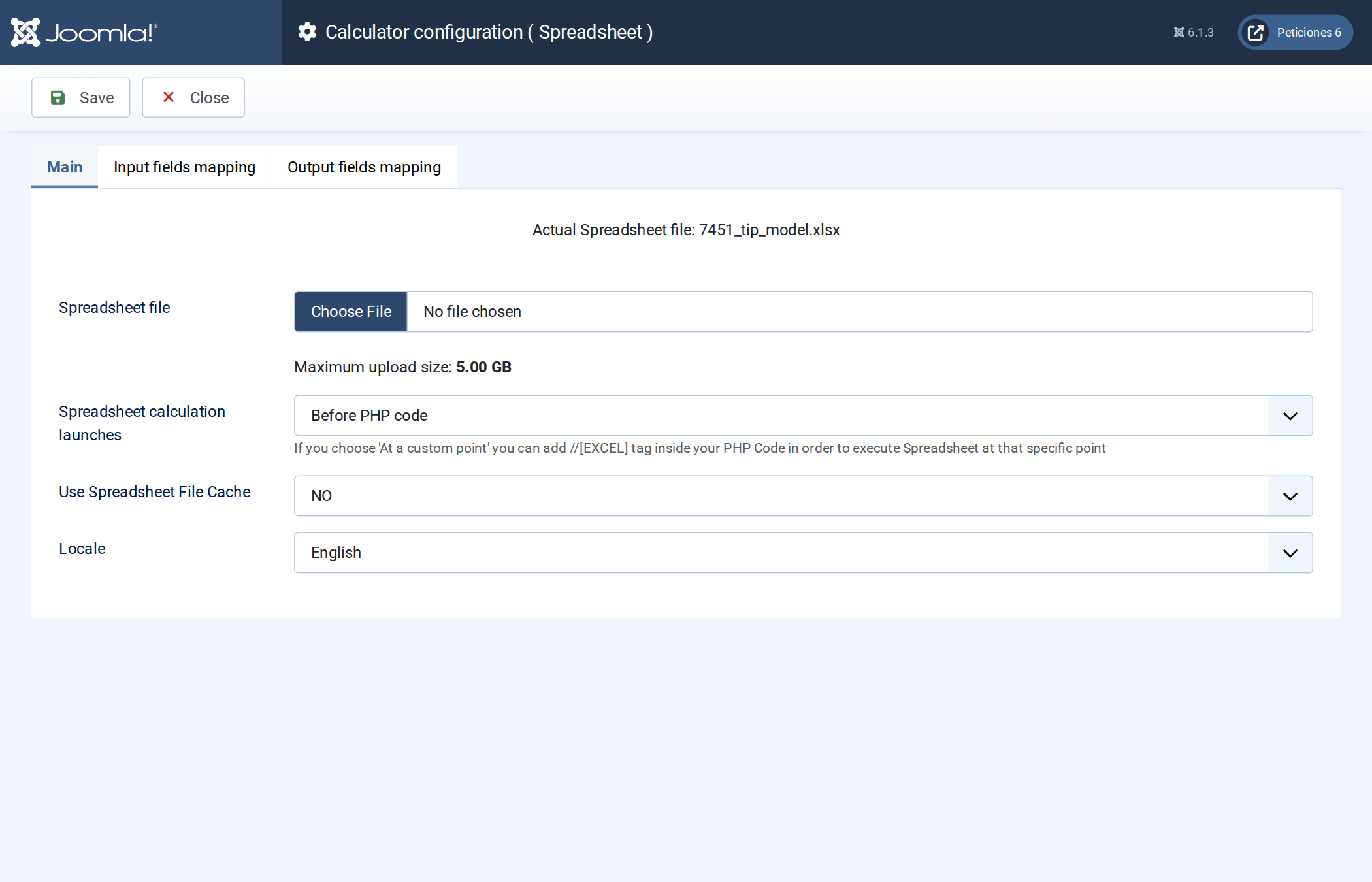
- Open the Spreadsheet screen from the toolbar.
- Choose File and pick
tip_model.xlsx. - Spreadsheet calculation launches: choose Before the code. The workbook runs first and its results become variables; since there is nothing else to do, the PHP box stays empty.
- Set Locale to English and leave the cache off.
4. Map the form fields to the input cells
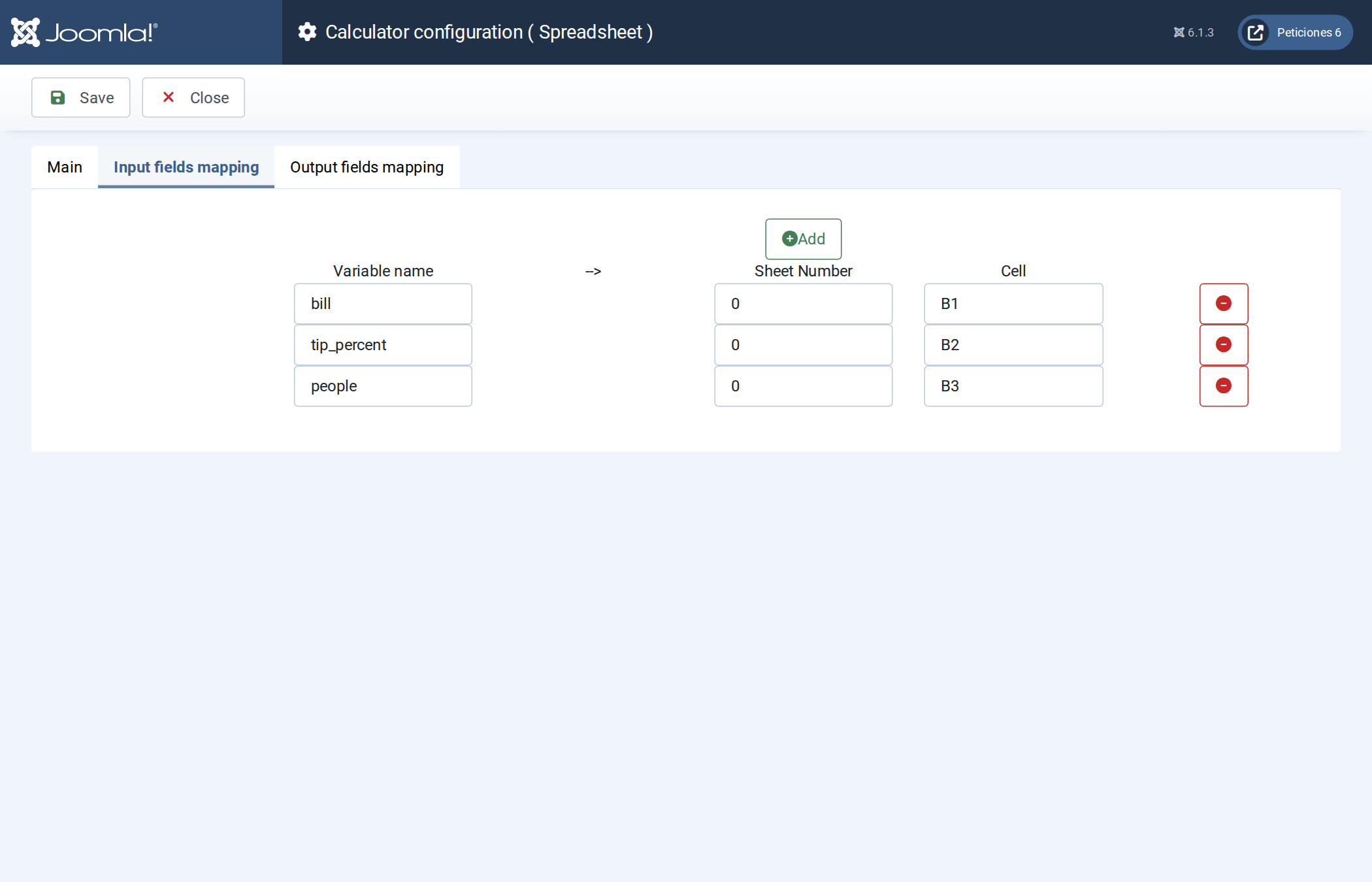
On Input fields mapping, click Add once per field:
bill→ sheet0→B1tip_percent→ sheet0→B2people→ sheet0→B3
5. Map the result cells to variables
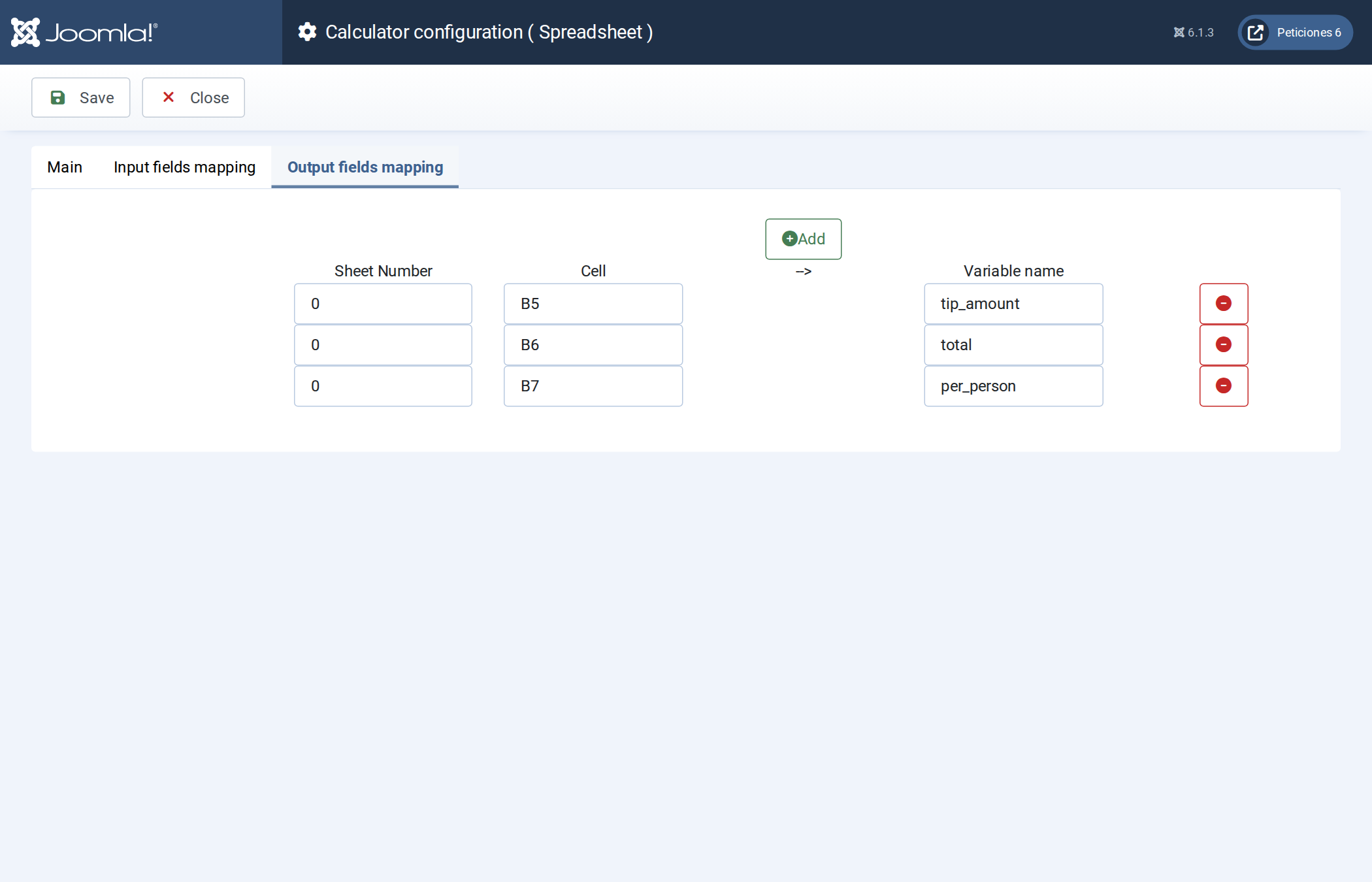
On Output fields mapping:
0/B5→tip_amount0/B6→total0/B7→per_person
Save. After the calculation, tip_amount, total and
per_person exist as variables — just as if PHP had produced them.
6. PHP code — leave it empty
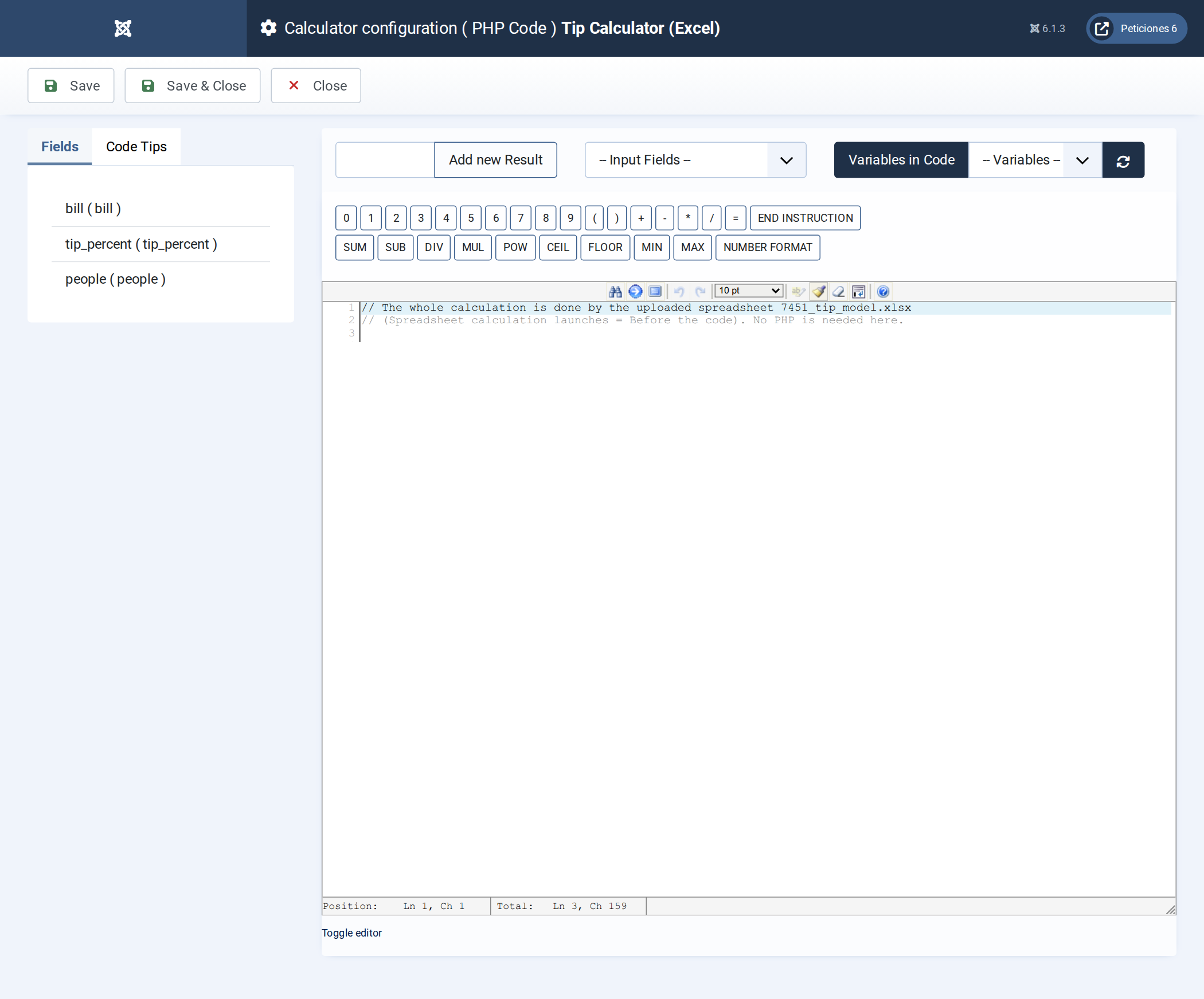
Nothing to write here. The workbook already did everything. (A one-line comment is fine as a reminder.)
7. Exit Layout
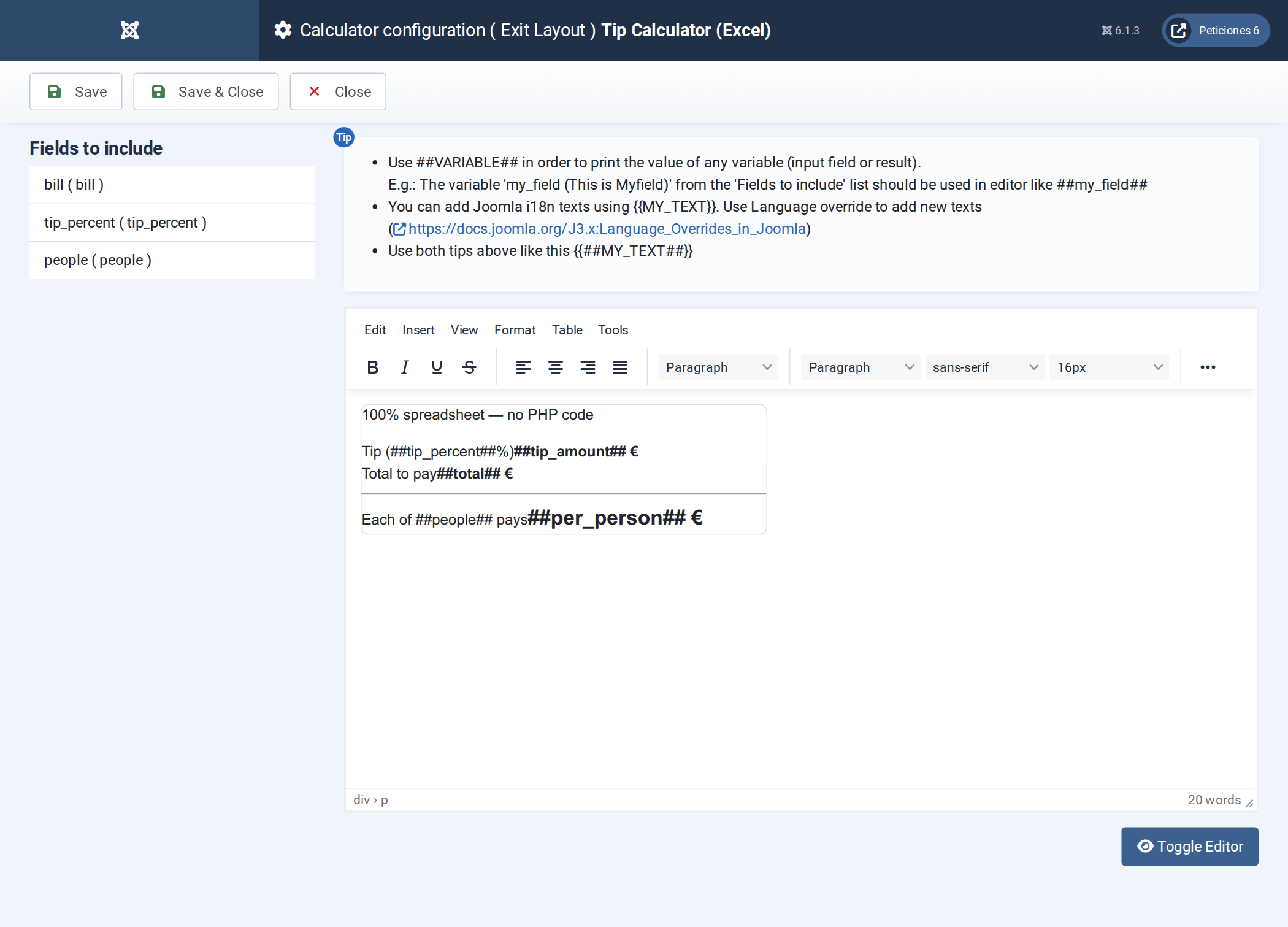
The result template is the same as the PHP version. The form-field placeholders
(##tip_percent##, ##people##) and the spreadsheet outputs
(##tip_amount##, ##total##, ##per_person##) all work the
same way:
<div class="p-3 border rounded" style="max-width:440px">
  <div class="d-flex justify-content-between mb-2"><span>Tip (##tip_percent##%)</span><strong>##tip_amount## €</strong></div>
  <div class="d-flex justify-content-between mb-2"><span>Total to pay</span><strong>##total## €</strong></div>
  <hr>
  <div class="d-flex justify-content-between"><span>Each of ##people## pays</span><strong style="font-size:1.4rem">##per_person## €</strong></div>
</div>
8. Preferences & publish
On the Preferences tab set the button text and turn on calculate on load. Publish with a menu item of type Calc Builder and select Tip Calculator (Excel) on the Options tab.
Result
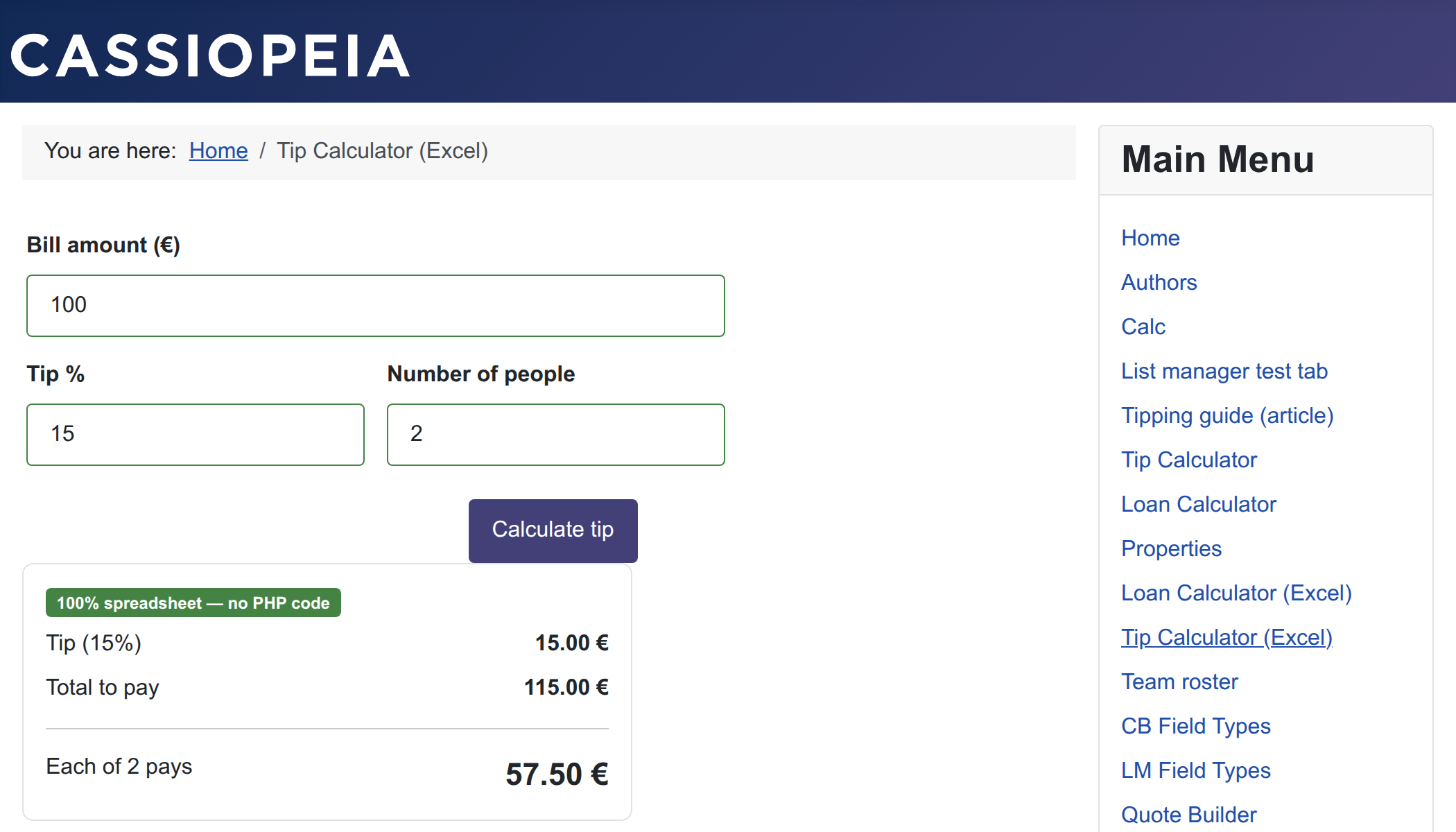
Tip 15.00 €, Total 115.00 €, 57.50 € each — identical to the PHP version, and it recalculates on every change. The whole calculation now lives in a 5 KB file that anyone can open in Excel or LibreOffice, edit, and re-upload — no developer required.
The same technique with a bigger model: a loan calculator with an amortization schedule (Excel spreadsheet).