
CalcBuilder Tutorial
Calc Builder field type: Linked List
A Linked List is a drop-down whose options depend on what the visitor picked in a parent drop-down — pick a Country and the City list only offers that country’s cities. The options are typed in by hand (Multiple Values); if they live in a database table, use the Linked List SQL type instead.
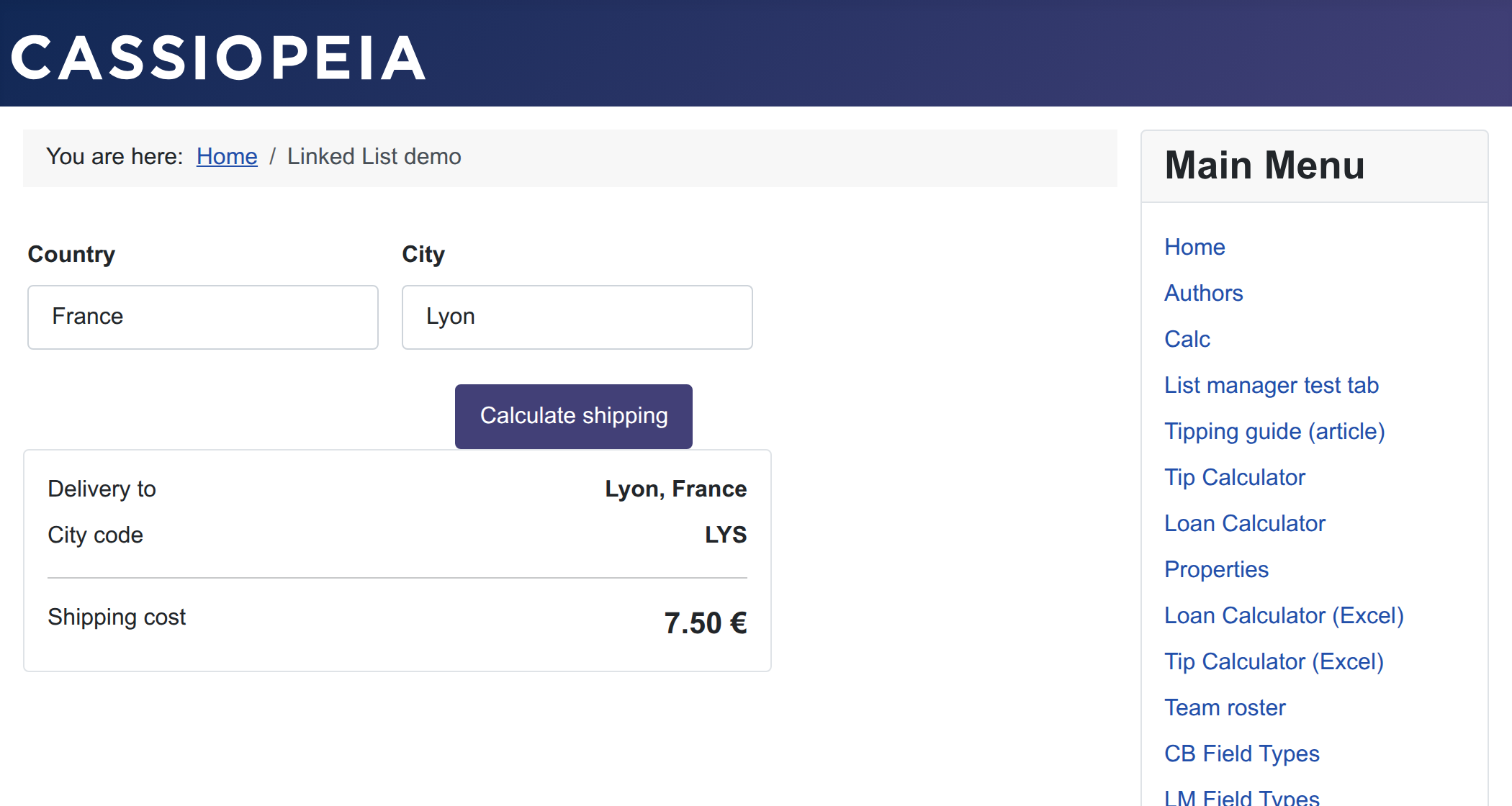
How the link works (read this first)
There is no “depends on” setting for a Linked List. The link is made by two naming rules:
| Parent field (Option List) | Child field (Linked List) | |
|---|---|---|
| Variable | country | country_city — the parent’s variable + _ + any word |
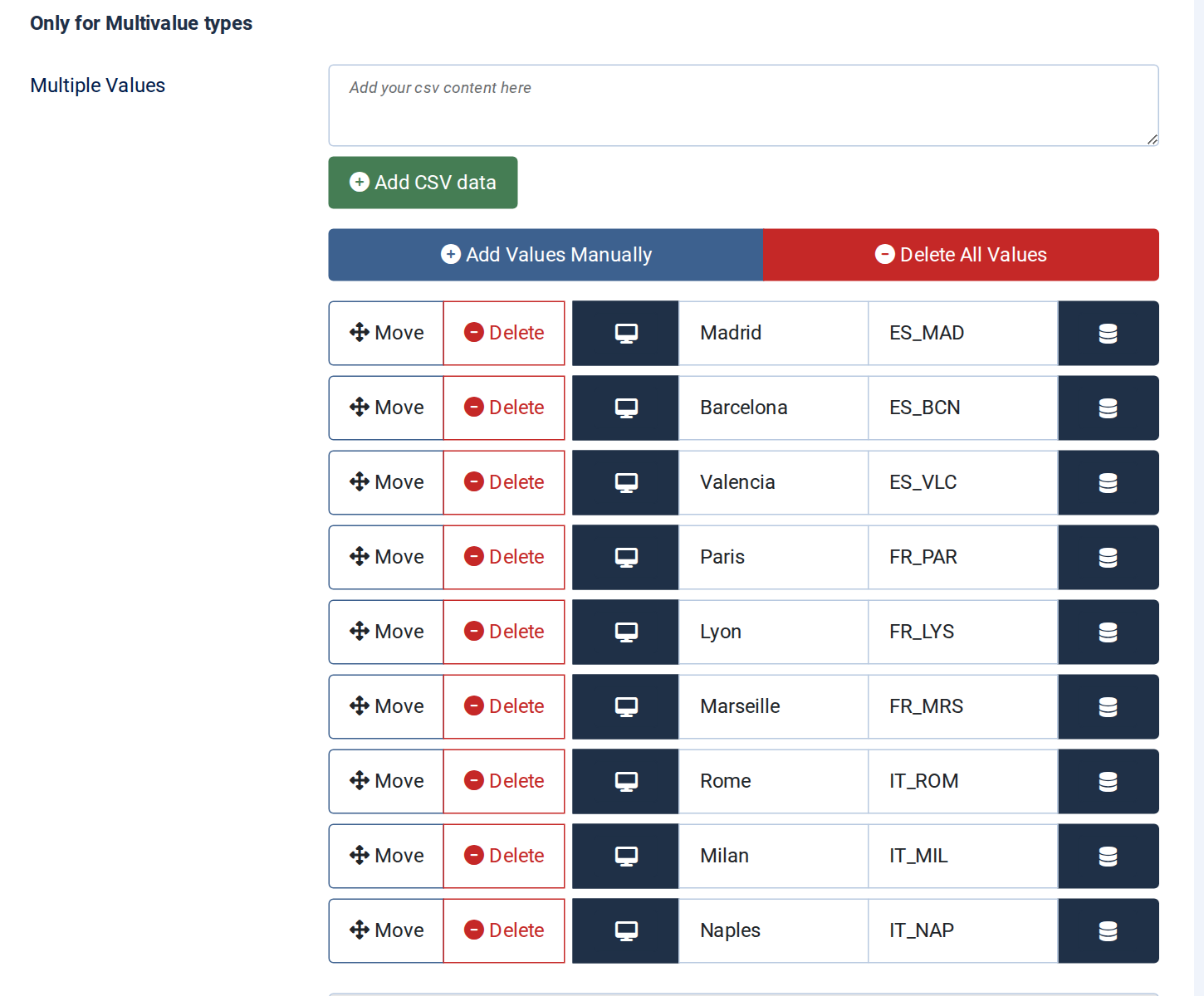
| Option values (“Saved in database” column) | ES, FR, IT | ES_MAD, ES_BCN, FR_PAR, FR_LYS… — the parent option’s value + _ + any code |
- Which field is the parent? Calc Builder takes the Linked List’s variable name and drops the
part after the last underscore:
country_city→country. That must be the variable of the parent field. (Parent variables may contain underscores themselves:ship_country→ childship_country_city.) - Which options are shown? Same trick on each child option’s value:
FR_LYS→FR. The option is shown only while the parent option whose value is exactlyFRis selected. Matching is exact and case-sensitive.
If the child list is always empty, one of the two rules is broken: the variable
prefix doesn’t match the parent’s variable, or the option values don’t start with a parent
option’s value followed by _. The SQL query and Trigger field boxes you
also see on the Advanced tab are not used by a Linked List — leave them empty (they
belong to Linked List SQL).
Example: Country → City
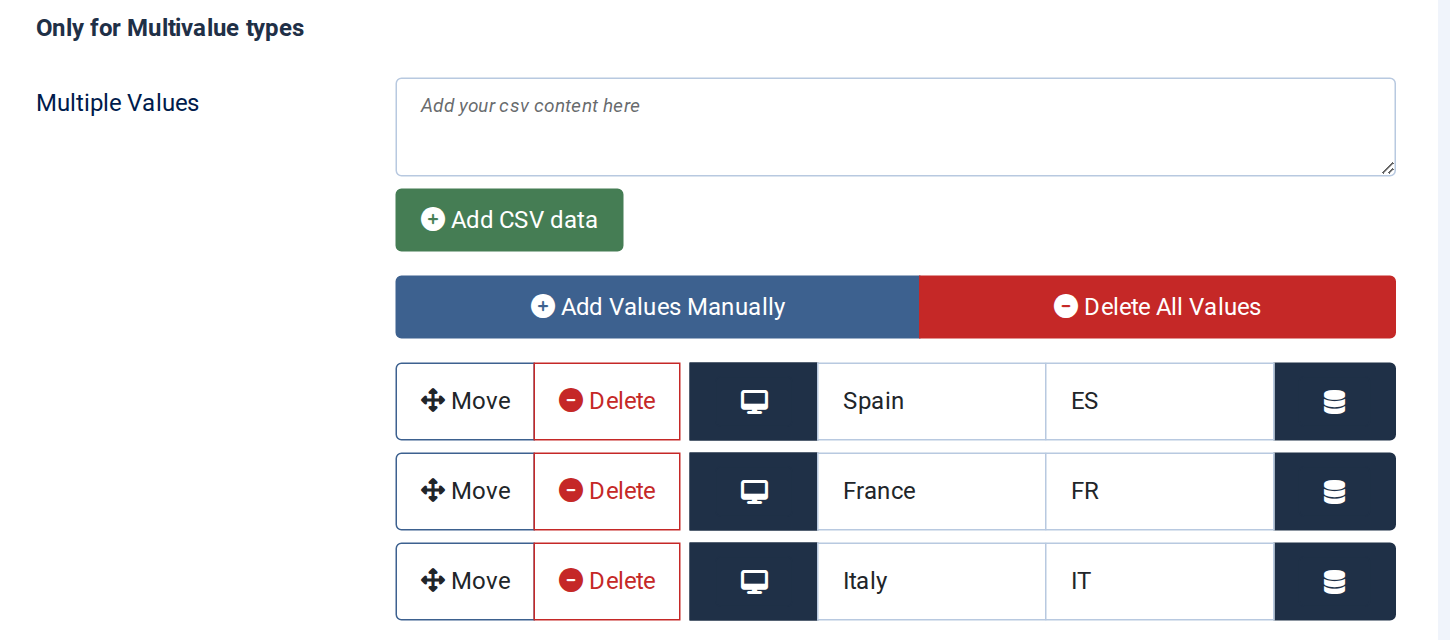
1. The parent field. On Form Fields add a field
Country, Variable country, Type Option List. On its
Advanced tab add the options — left box “Show in user interface”, right box
“Saved in database”:
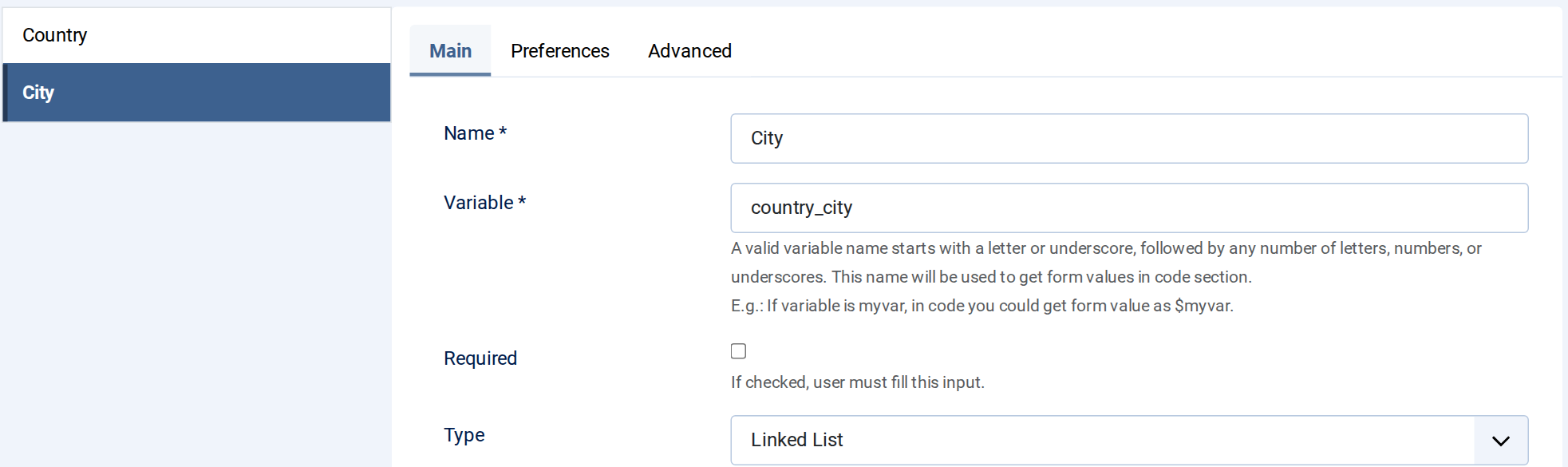
2. The child field. Add a field City with Variable country_city and
Type Linked List:
3. The child options. On the City field’s Advanced tab add every city of every country, each value prefixed with its country’s value:
4. Form Layout. Place both fields as usual:
<div class="row g-3" style="max-width:520px">
  <div class="col-6"><label class="form-label fw-bold">Country</label>##country##</div>
  <div class="col-6"><label class="form-label fw-bold">City</label>##country_city##</div>
  <div class="col-12 mt-4"></div>
</div>
5. PHP code. Each list gives you two variables: the value of the chosen option
and, with the _name suffix, its label:
| Variable | Example |
|---|---|
$country | "FR" |
$country_name | "France" |
$country_city | "FR_LYS" |
$country_city_name | "Lyon" |
// $country       -> value of the chosen country, e.g. "ES"
// $country_name  -> its label, e.g. "Spain"
// $country_city  -> value of the chosen city, e.g. "ES_MAD"
// $country_city_name -> its label, e.g. "Madrid"
$city_code = substr($country_city, strlen($country) + 1);   // "MAD"

$shipping_rates = ['ES' => 4.95, 'FR' => 7.50, 'IT' => 8.90];
$shipping = number_format($shipping_rates[$country] ?? 0, 2);
6. Exit Layout. The same variables work as ##placeholders##:
<div class="p-3 border rounded" style="max-width:520px"> <div class="d-flex justify-content-between mb-2"><span>Delivery to</span><strong>##country_city_name##, ##country_name##</strong></div> <div class="d-flex justify-content-between mb-2"><span>City code</span><strong>##city_code##</strong></div> <hr> <div class="d-flex justify-content-between"><span>Shipping cost</span><strong style="font-size:1.3rem">##shipping## €</strong></div> </div>
Result
On page load the City list already contains the cities of the default country (Spain). Changing the country refills it straight away in the browser — no round trip to the server — and the first city of the new country is selected.
Part of the Form Fields reference. Need the options from a database table instead? See Linked List SQL.